Database guides
BigQuery
This guide covers connecting to Google BigQuery in Sheeta DB. BigQuery supports two authentication methods: Google Login (OAuth2) and Service Account credentials.
Connecting to BigQuery
Step 1: Open connection settings
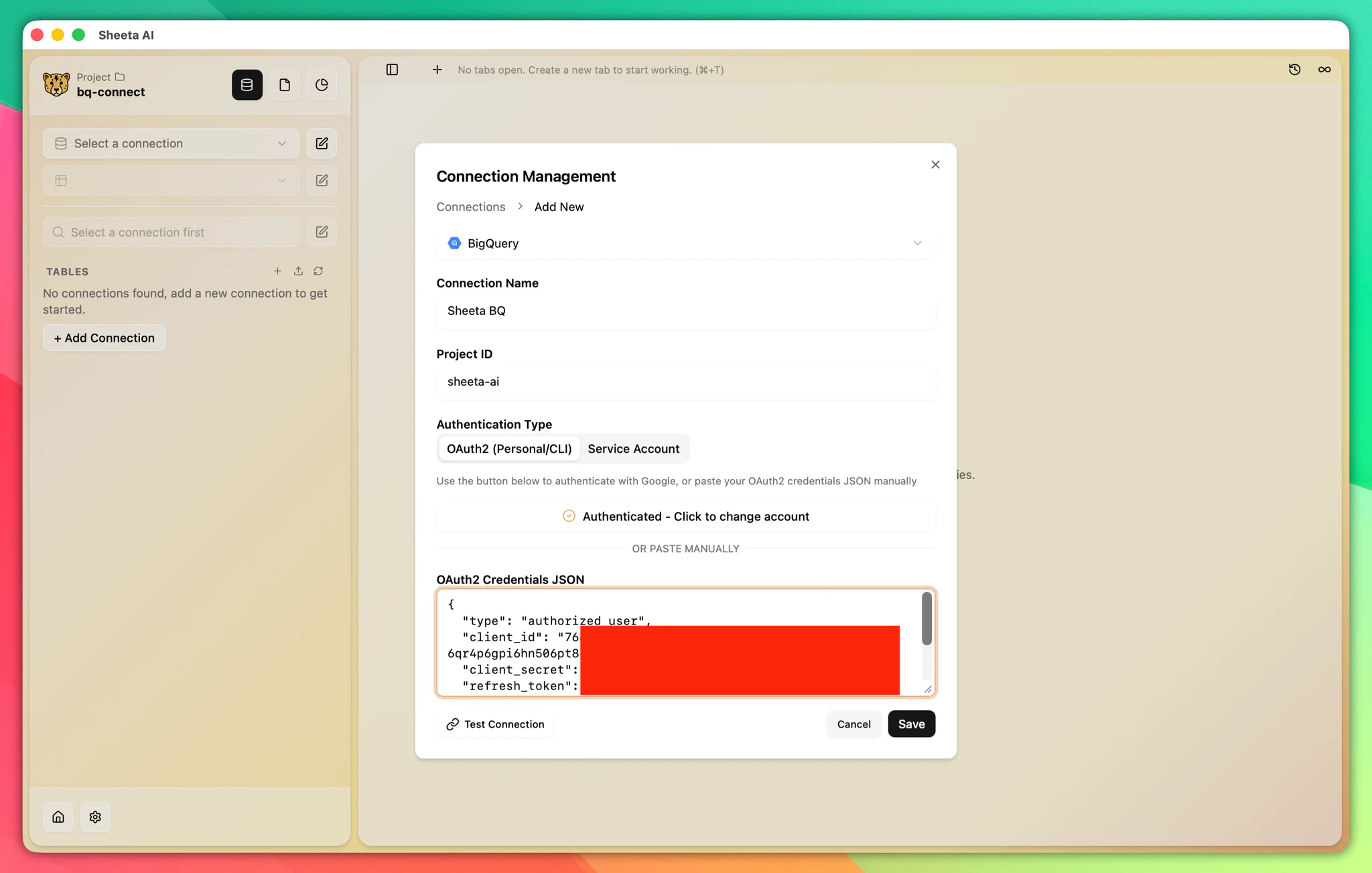
Click the edit icon next to the connection dropdown to open the connection settings. Click Add connection and select BigQuery.
Step 2: Enter connection name
Enter a descriptive name for your connection. This helps you identify the connection when you have multiple BigQuery connections.
Step 3: Enter project ID
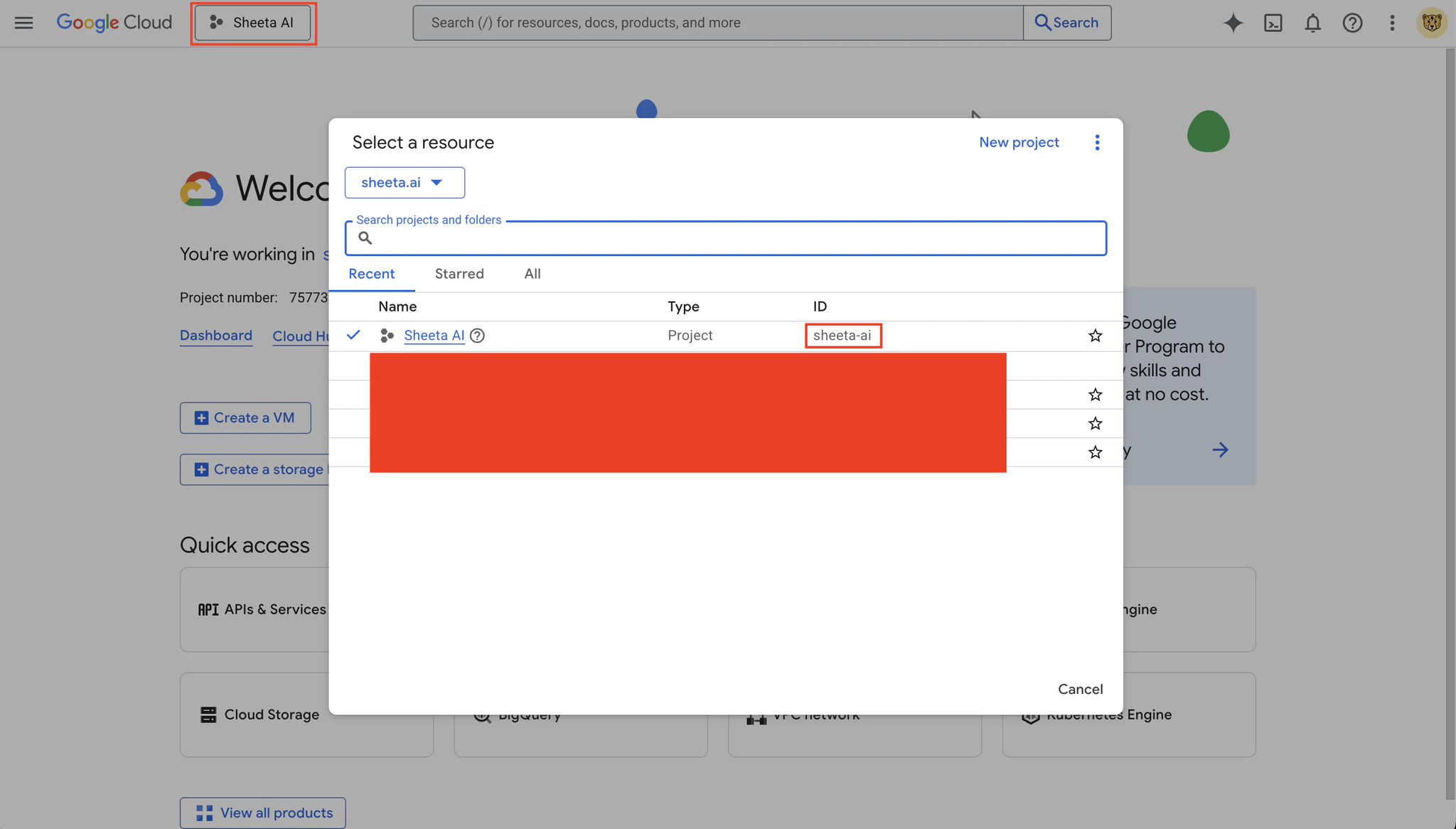
Enter your Google Cloud Project ID. You can find this in the Google Cloud Console at the top of the page or in the project selector dropdown.
Step 4: Authentication
You can authenticate to BigQuery using Google Login or Service Account.
This method mimics how you use your email to interact with BigQuery in its console. Your credentials will be downloaded and stored locally on your device and will never be sent to our server.
- Click the Login With Google button
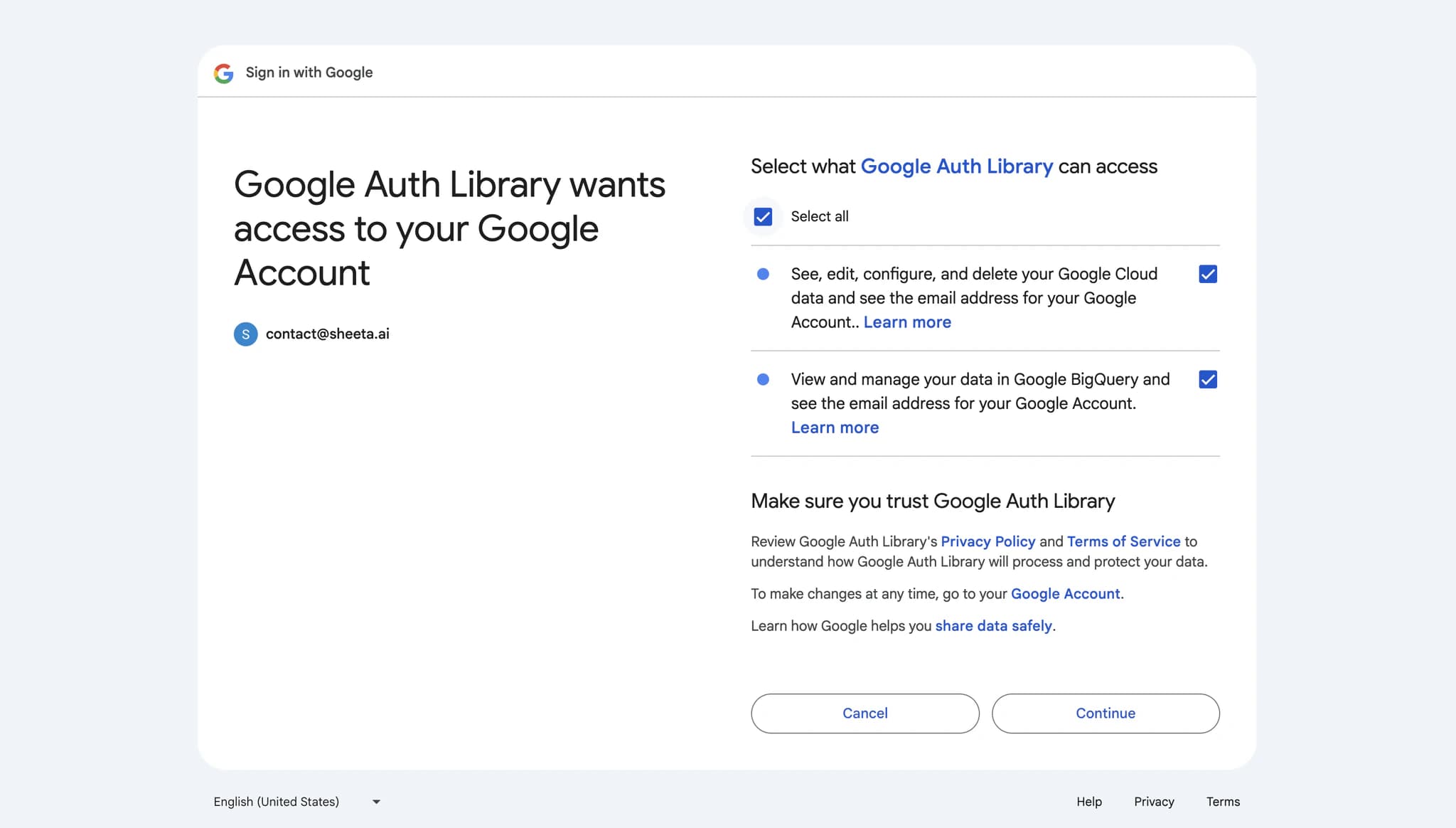
- Select the email that has permissions to the filled project ID
- Check all necessary permissions and complete the login process
- Close the browser tab and head back to Sheeta DB
- The auth token will be filled in the text field
- Click Test Connection to verify your credentials work. Once successful, click Save to store the connection.