Provider guides
Supabase
This guide covers connecting Sheeta DB to Supabase, a serverless PostgreSQL platform. Supabase provides cloud-based features that help you effortlessly set up authentication, payments, and custom backend functions. It also offers a generous free tier for development and production workloads.
Get Started
- Go to the Supabase website.
- Log in with your GitHub account or email.
- Create an organization if this is your first time.
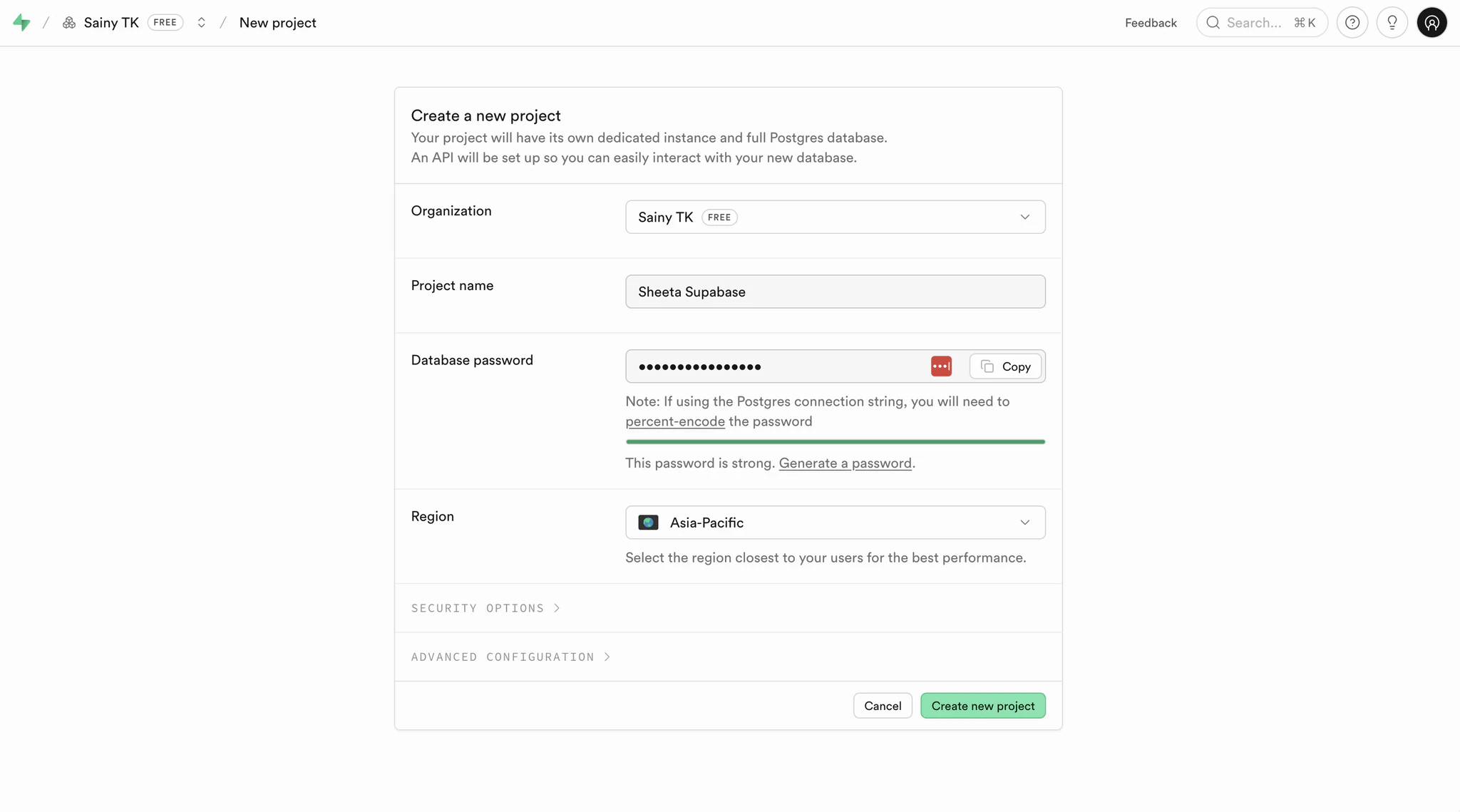
- Create a new project. Fill in the Project name and select a Region close to where your users are located.
- Set up a strong database password. Keep this password secure as you will need it later.
- Click Create new project to complete.
Connect Supabase to Sheeta DB
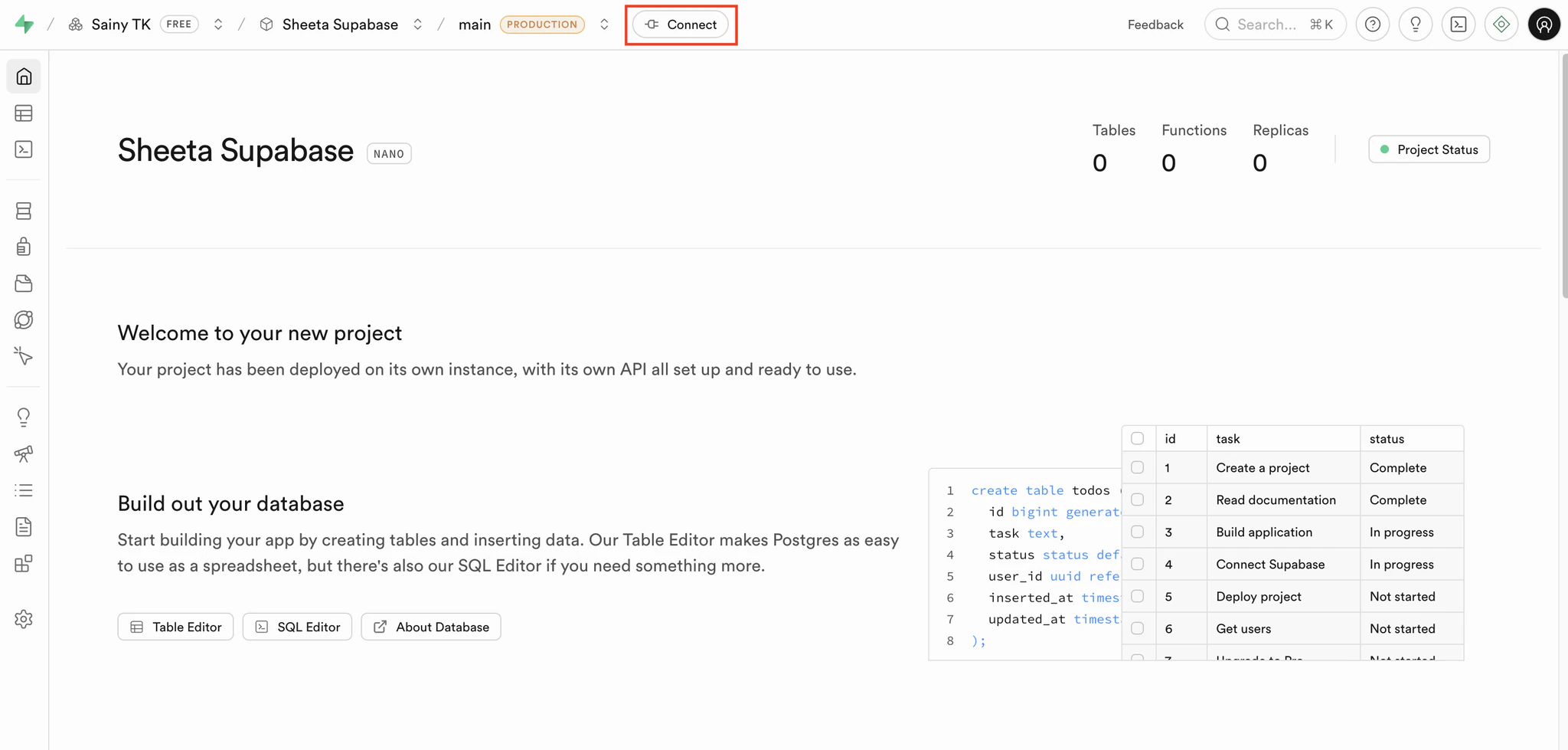
- On the Supabase project page, click Connect.
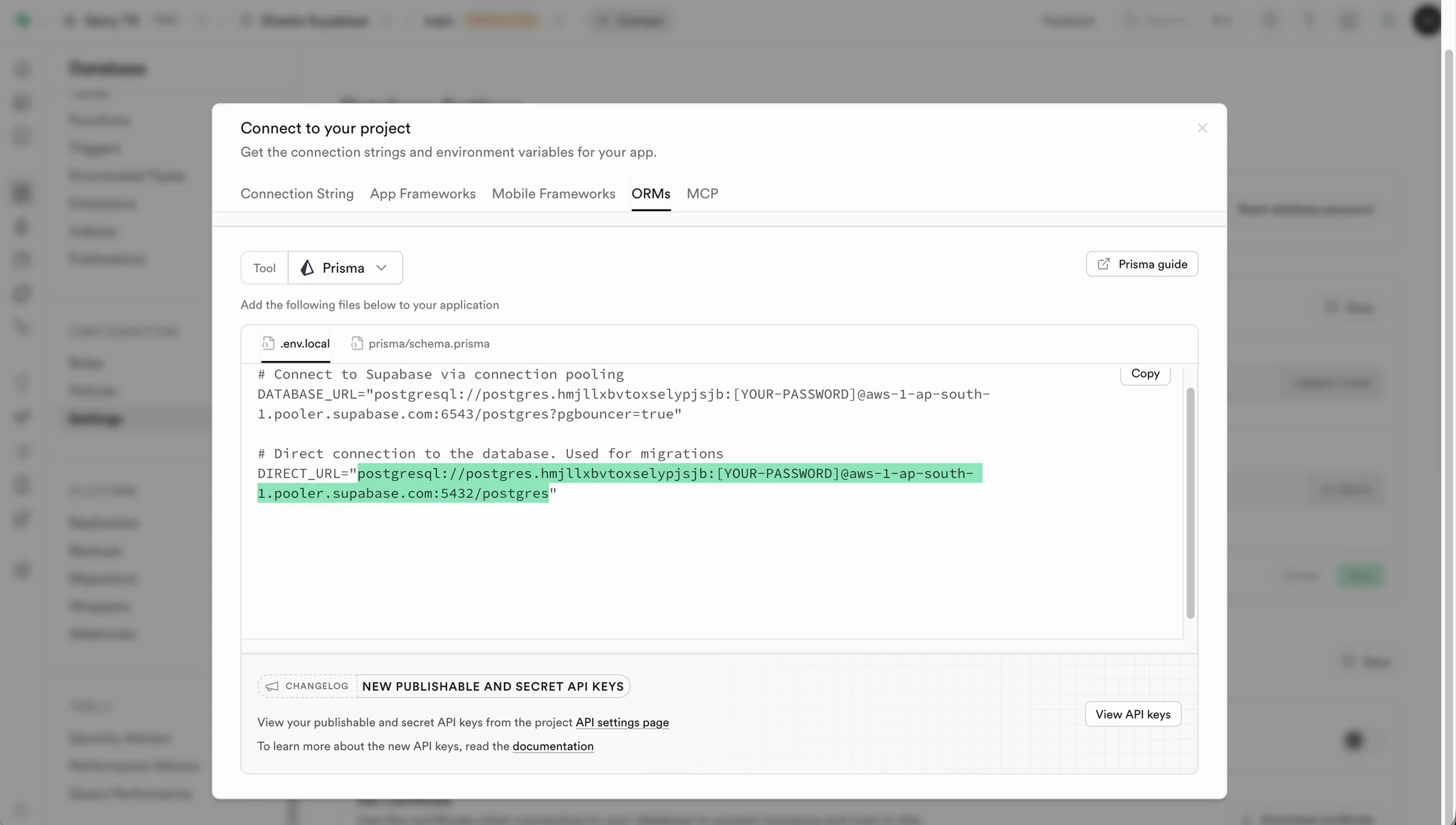
- In the modal, select the ORMs tab and choose Prisma as the tool. Copy the direct DB connection URL.
- Open a project in Sheeta DB and click the edit icon next to the connection dropdown.
- Click Add connection and select PostgreSQL.
- Select URL as the connection method.
- Paste the connection URL.
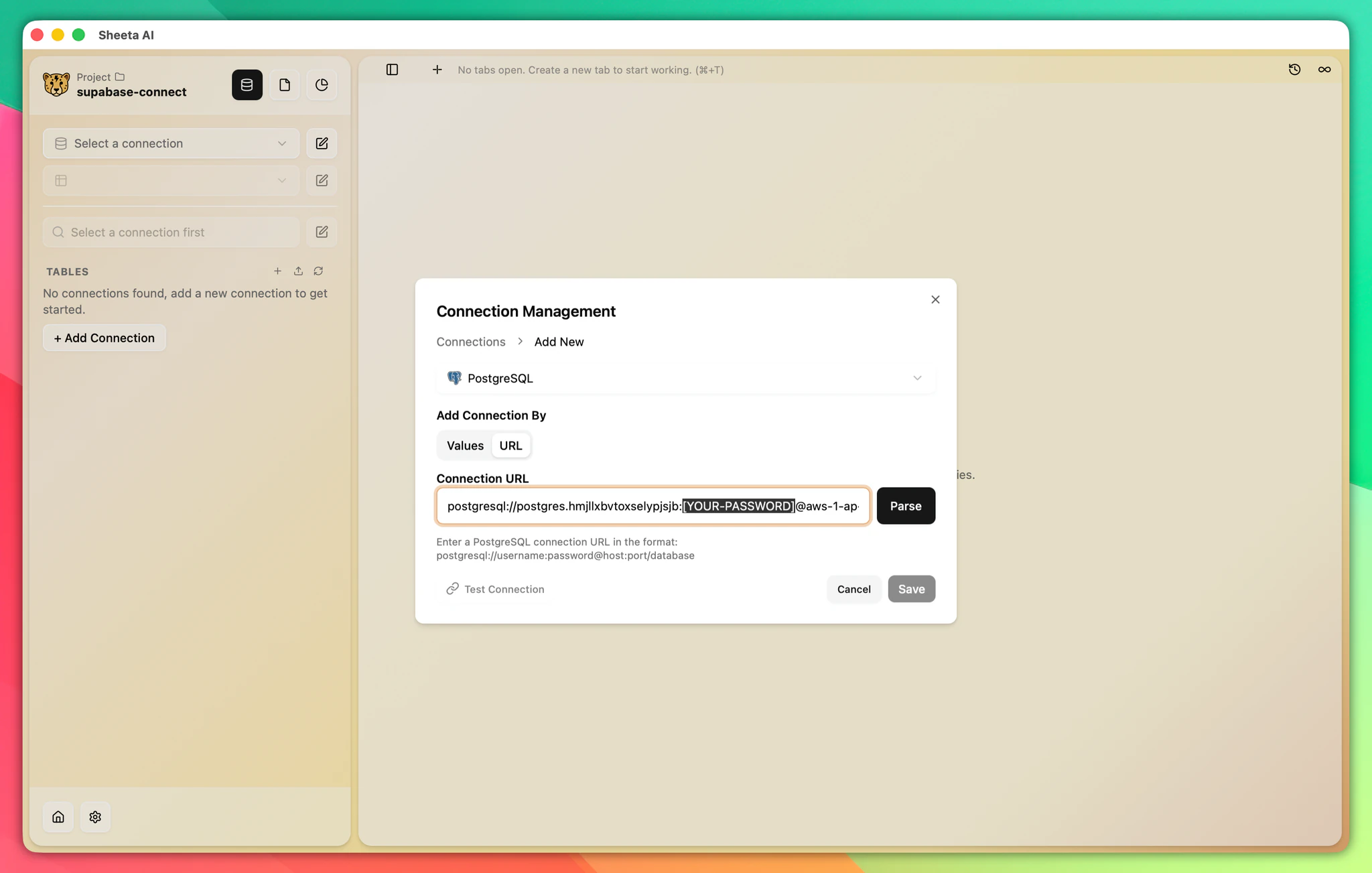
- Replace the
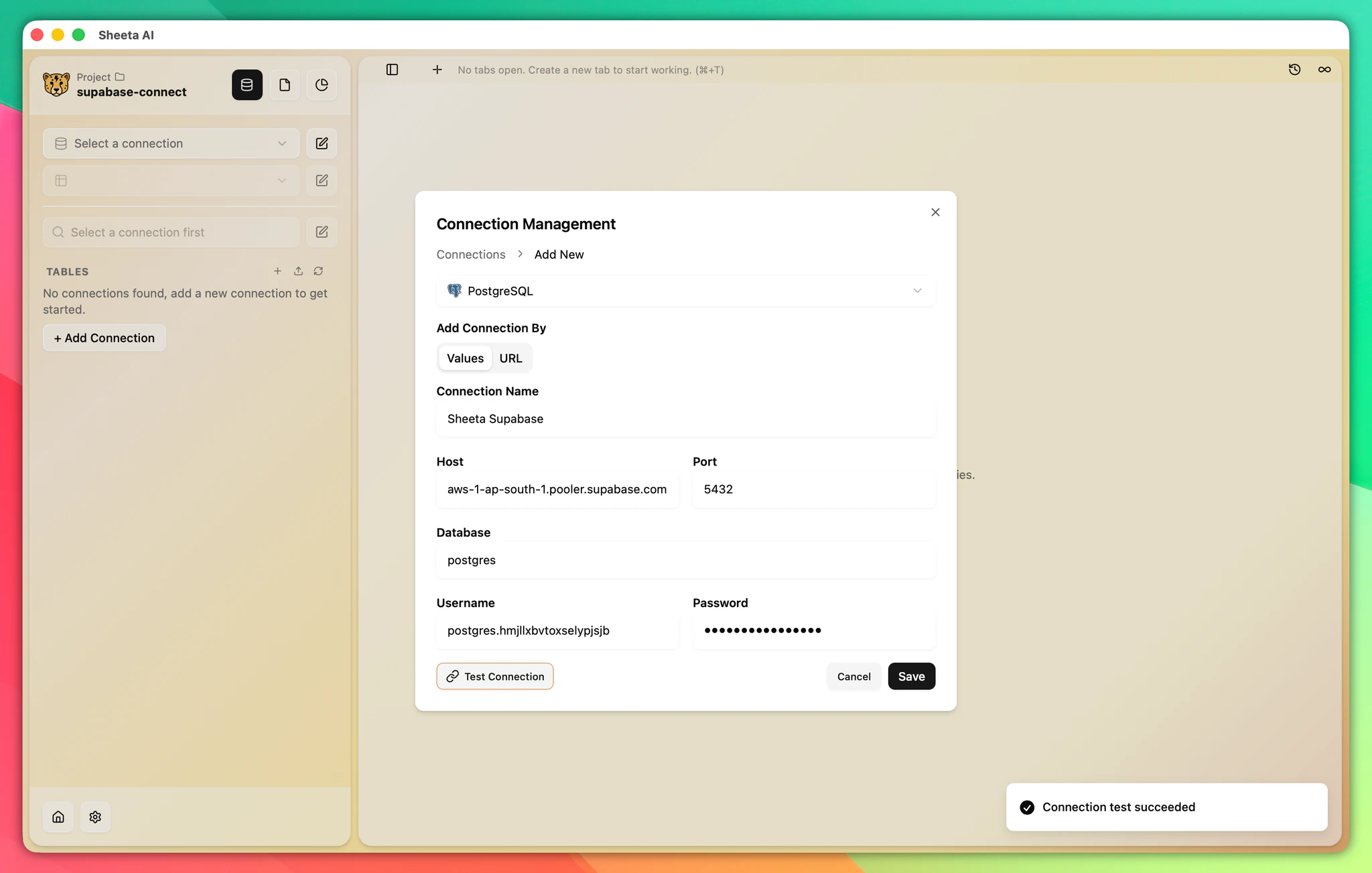
[YOUR-PASSWORD]placeholder with your database password. - Click Parse. The app will populate the connection details automatically.
- Enter a Connection Name.
- Click Test Connection to verify.
- Click Save.
Recommended Workflow
Supabase includes pre-built database schemas. We recommend working with the public schema when using Supabase with Sheeta DB.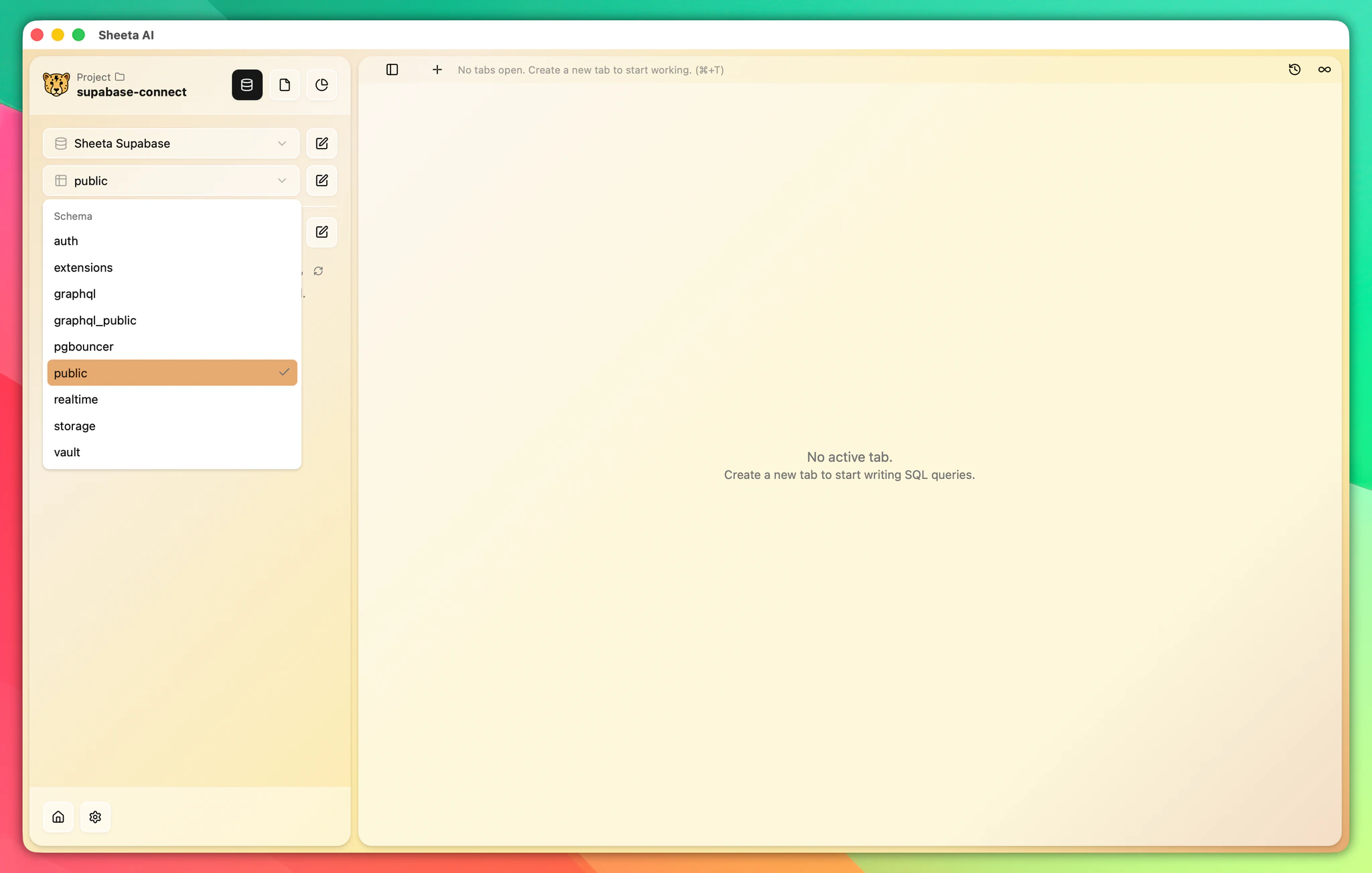
Troubleshooting
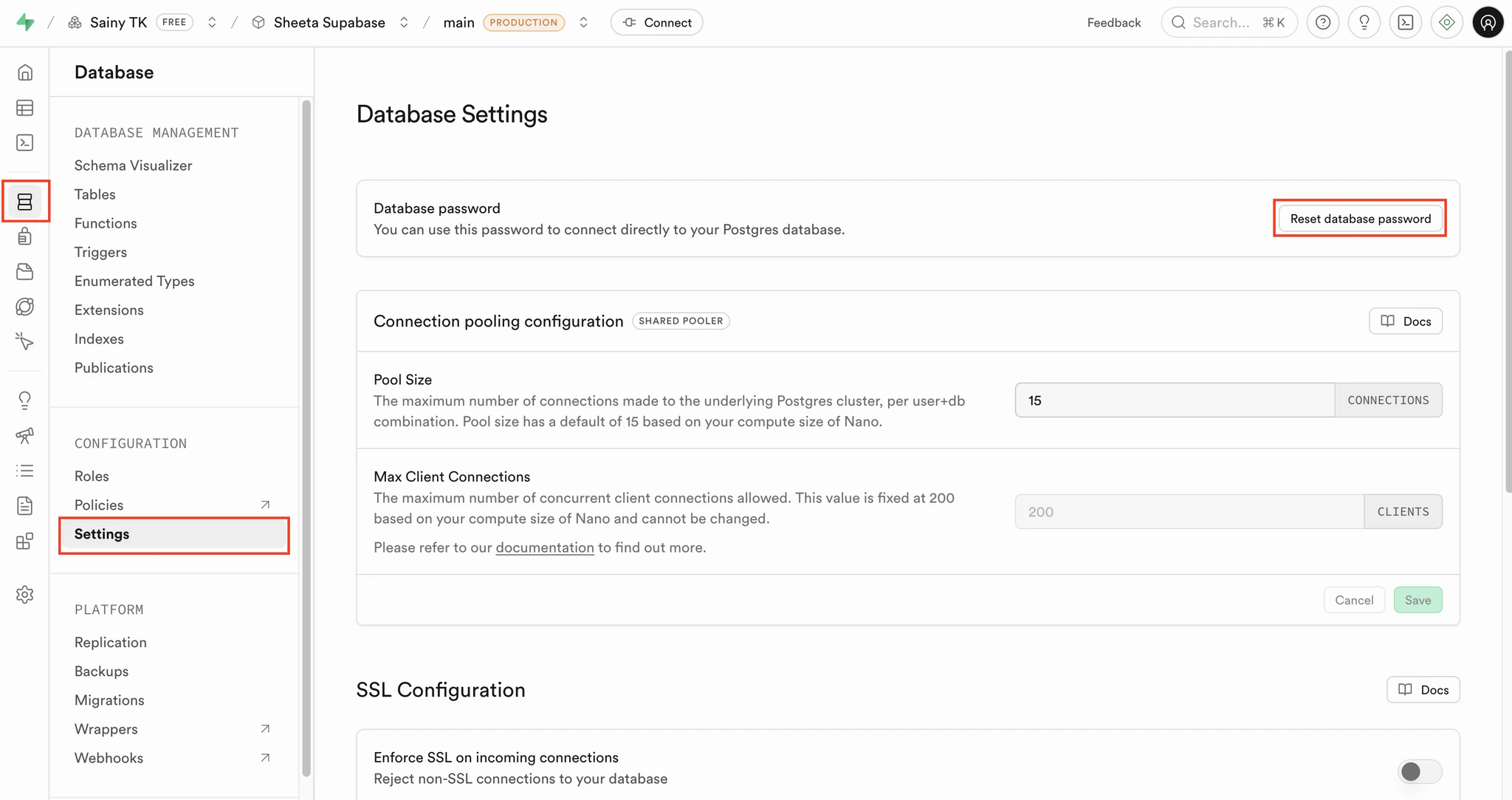
Forgot your database password? Here's how to reset it:
- Go to the Supabase dashboard and select your project.
- Navigate to Database → Settings, then click Reset database password.
- Your old password will no longer be valid. Keep the new password secure.