Database guides
PostgreSQL
This guide walks you through setting up a local PostgreSQL database and connecting it to Sheeta DB. For cloud-hosted PostgreSQL, see Supabase, and Neon.
Local database setup
Get PostgreSQL running locally for development and testing. Choose the approach that works best for your setup:
PostgreSQL with DBngin
DBngin is a free Mac app that makes managing local databases simple.
Step 1: Install DBngin
Download and install DBngin from the official website.
Step 2: Create a PostgreSQL instance
Click the + button and select PostgreSQL. Choose your preferred version and click Create.
Step 3: Start the database
Click the Start button to run your PostgreSQL instance.
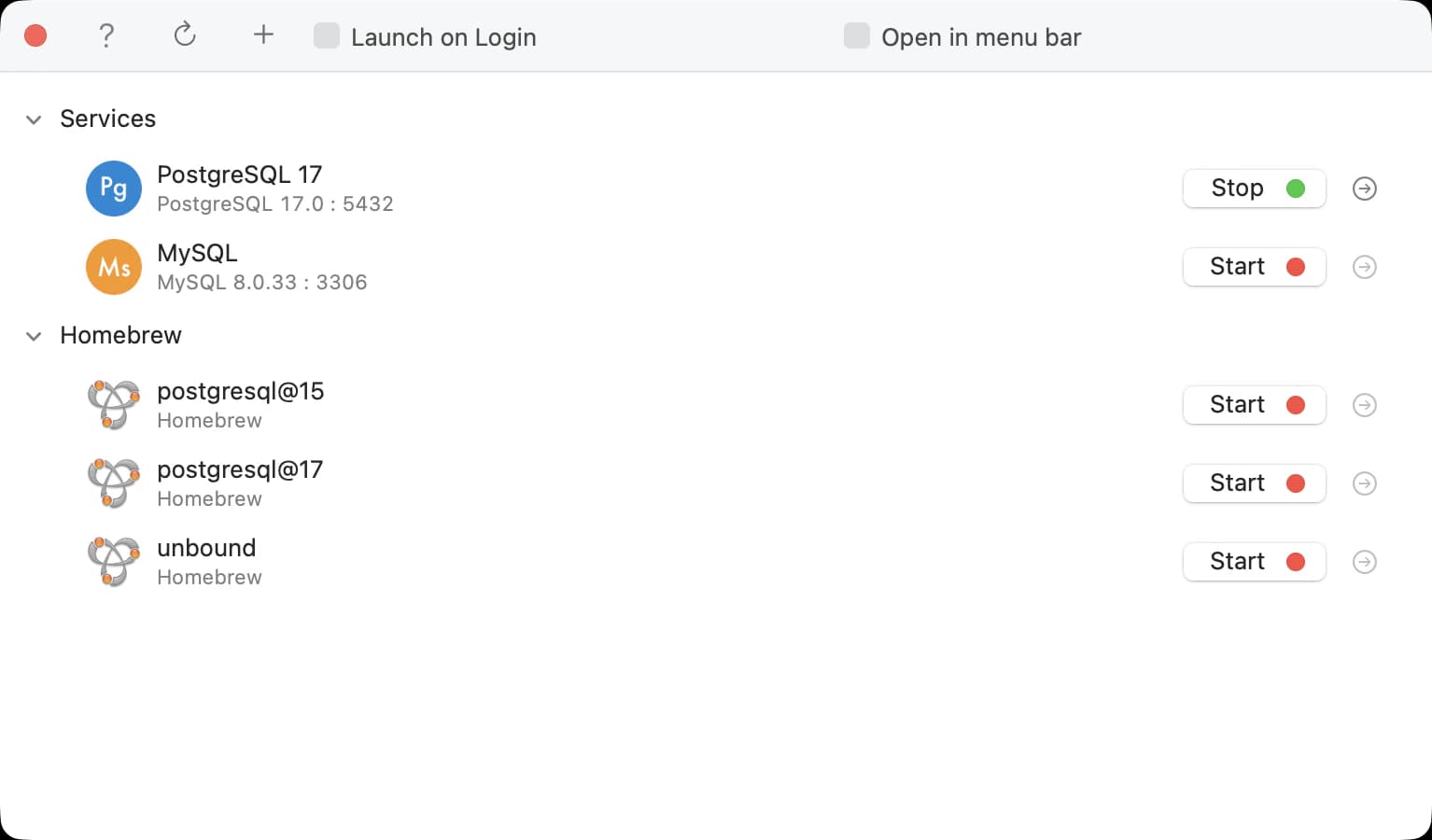
Your connection credentials will be:
- Host: localhost
- Port: 5432 (or the port shown in DBngin)
- Database: postgres
- Username: postgres
- Password: (leave empty)
Connect to the database
Once your PostgreSQL database is running, connect it to Sheeta DB.
Step 1: Open connection settings
Click the edit icon next to the connection dropdown to open the connection settings.
Step 2: Add a new connection
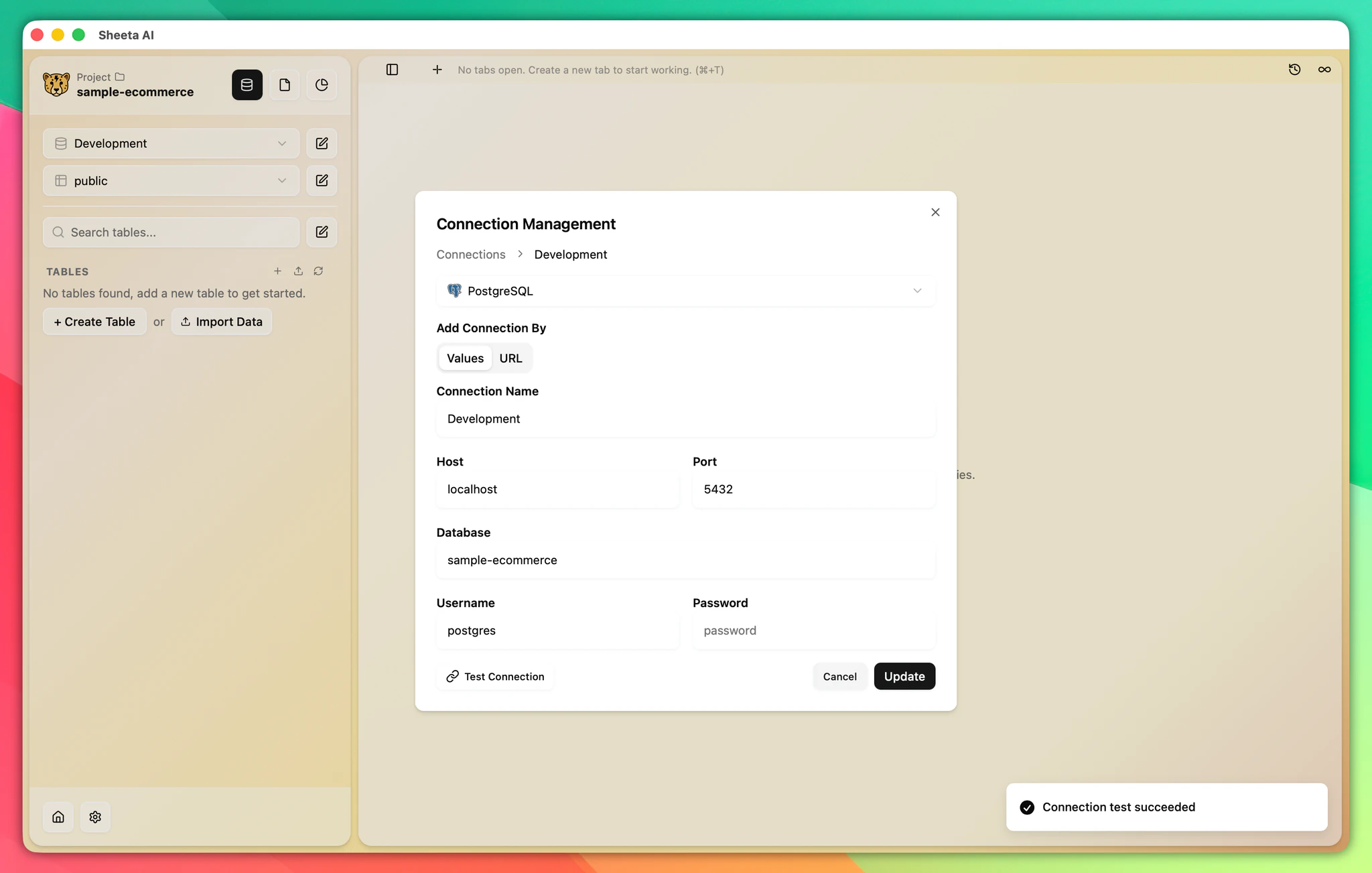
Click Add connection and select Postgres. You can configure the connection using individual fields or a connection URL.
Fill in your connection details:
- Connection Name - A memorable name for this connection
- Host - The server address (e.g., localhost)
- Port - Usually 5432 (the default PostgreSQL port)
- Database - The name of your database (e.g., postgres)
- Username - Your database username
- Password - The user's password (if any)
Step 3: Test and save
Click Test Connection to verify everything works. Once successful, click Save.