Get started
Quickstart
Get up and running with Sheeta DB in under 5 minutes. This guide walks you through connecting your first database, setting up tables with existing data, and generating insights.
If you haven't installed Sheeta DB yet, download it and complete the installation before continuing.
Create a Local Database
When you open Sheeta DB, you must connect to a database to get started.
- Download the sample dataset from this link.
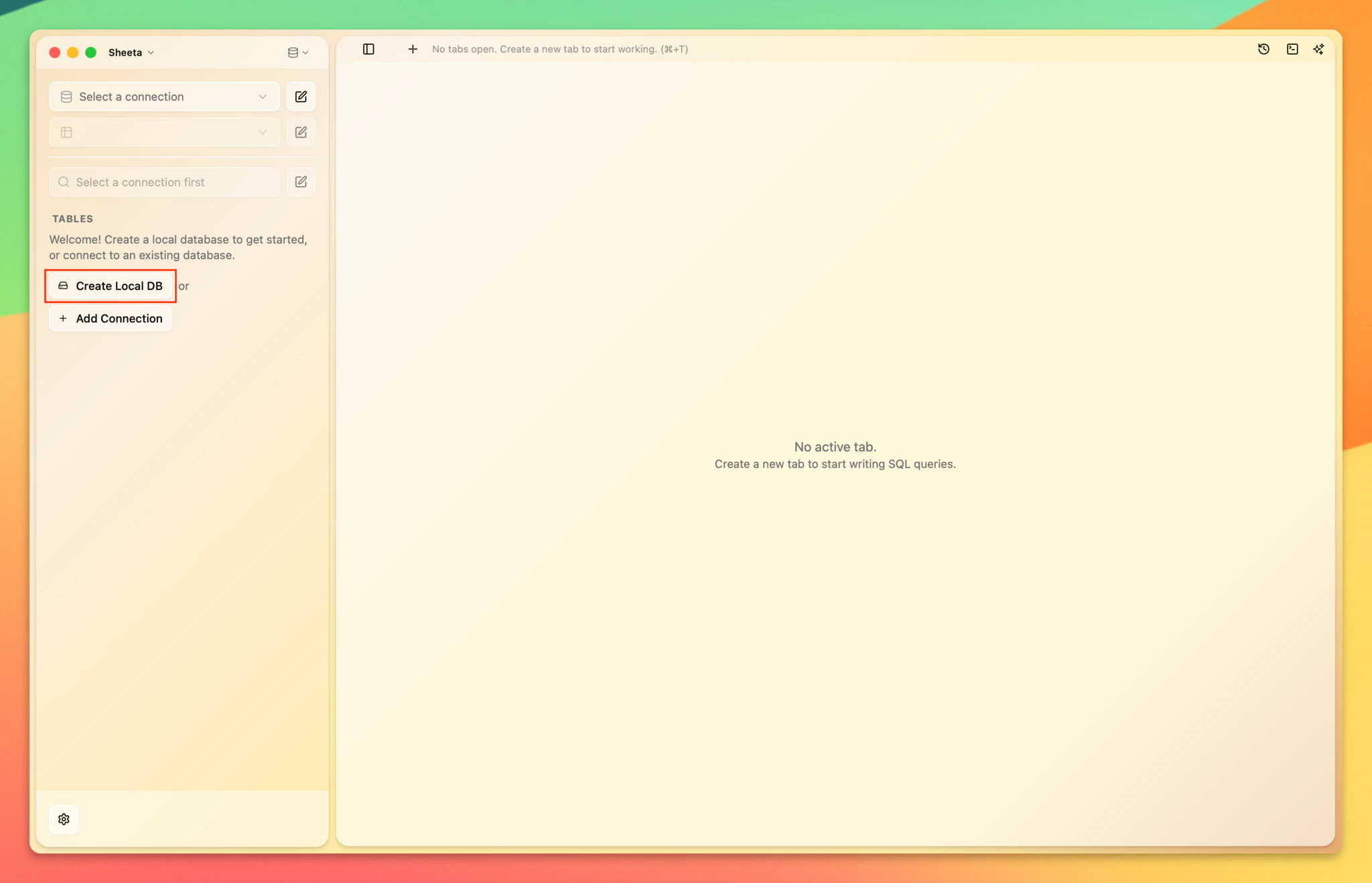
- Click Create Local DB to create and connect to a local database (powered by SQLite). This is the quickest way to work with a database project in Sheeta DB.
Import Data
Now let's import the sample data into your database.
- Click Import Data and select
purchases.csv.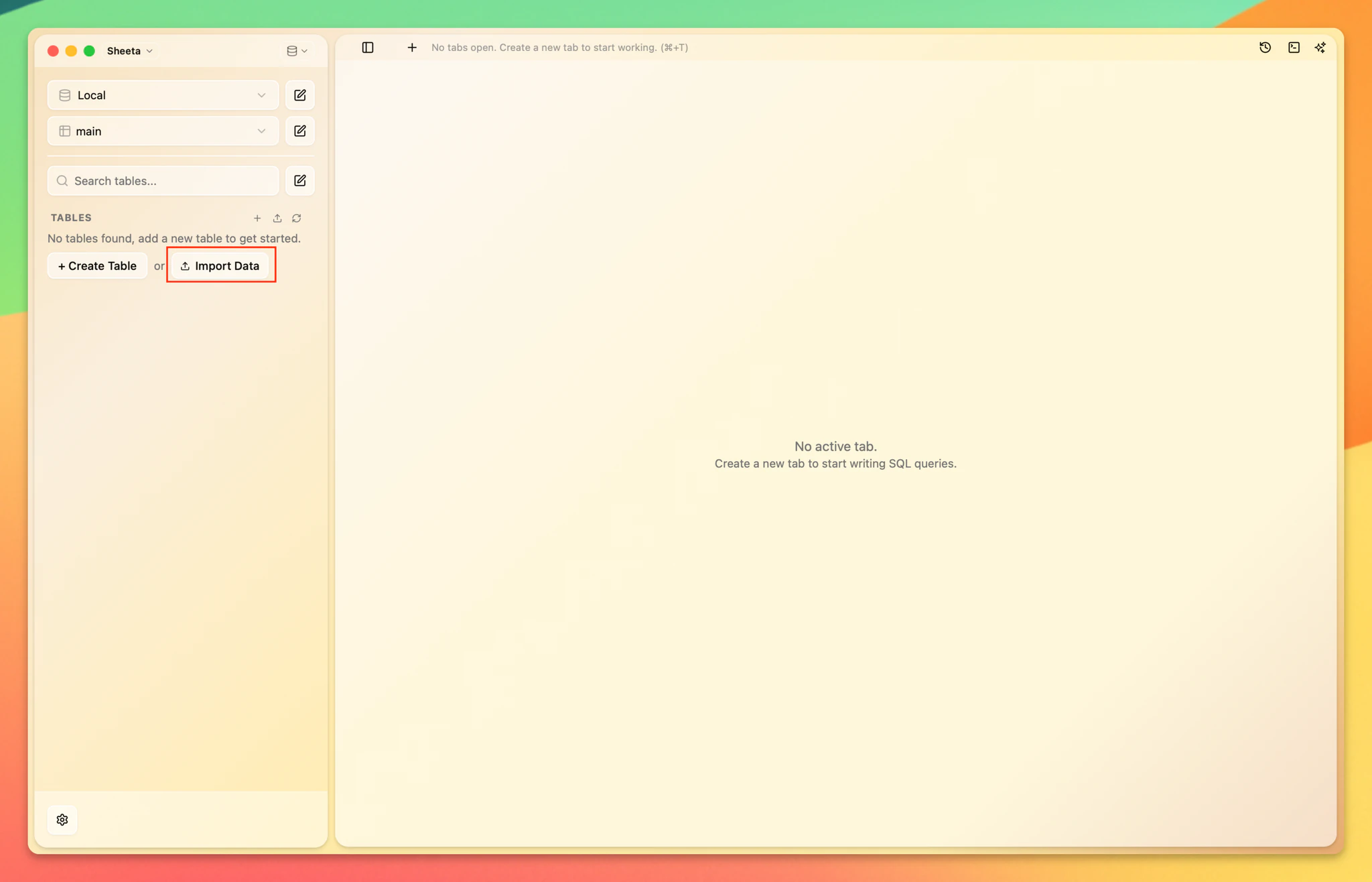
- Data import wizard will be shown. In this wizard, you can change table name, configure column names, types, primary keys, foreign keys, and other options. Data preview is shown in the second table below.For now, we use all default settings for simplicity. Click Import to proceed to data importing.
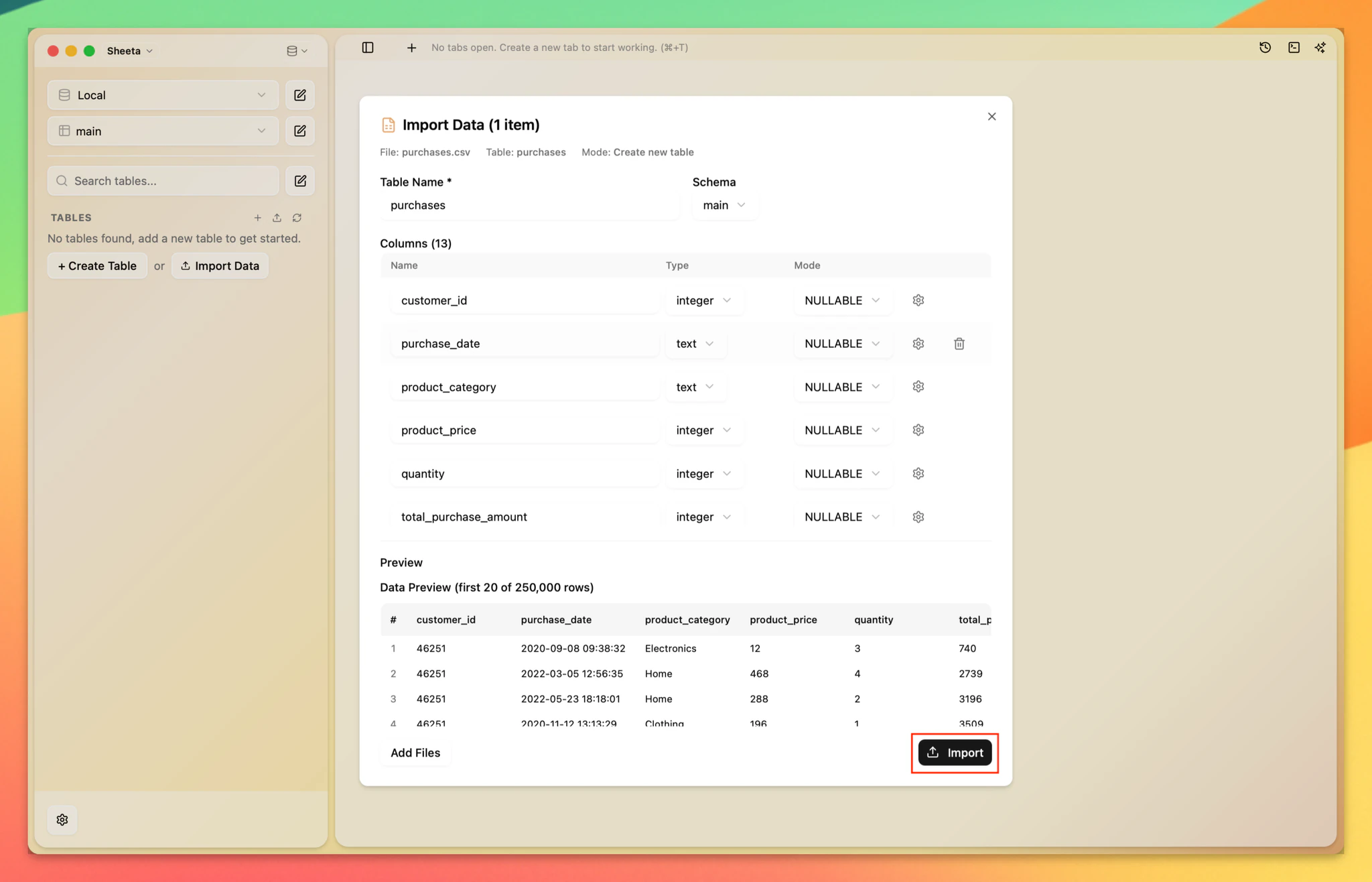
- Once complete, the new
purchasestable appears in the database panel. Click on it to preview the data.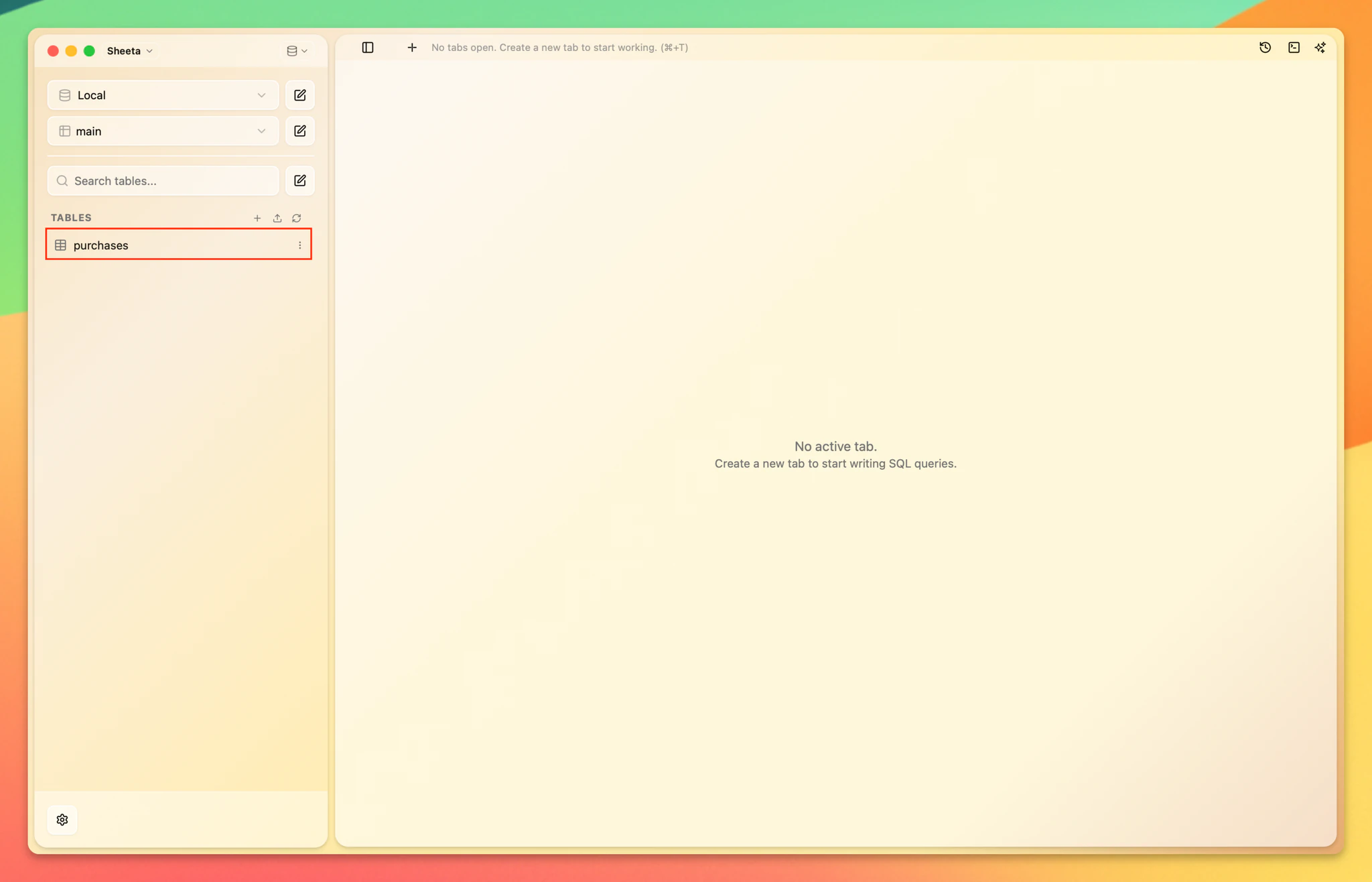
Explore Your Data
Let's find the oldest purchases for book products using the built-in sorting and filtering tools.
- In the data preview for the
purchasestable, scroll to thepurchase_datecolumn. - Click the sort toggle once to sort by
purchase_datein ascending order. - Scroll to the
product_categorycolumn and click the filter icon. - Check Books to filter the results.
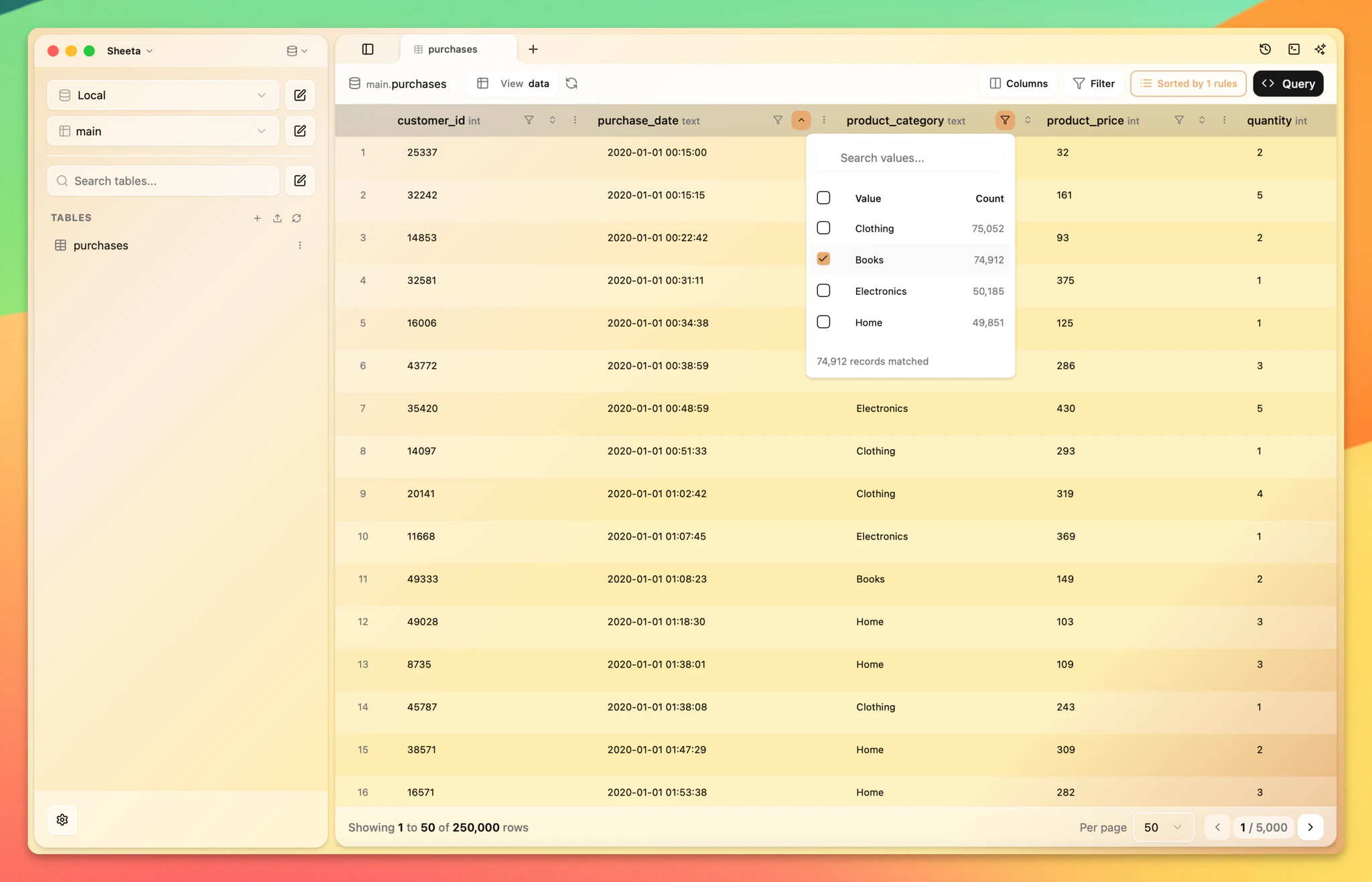
You now see a list of book product purchases sorted by oldest order date. No SQL required.
Generate Insights with AI
Let's use the AI assistant to analyze monthly sales trends for book products.
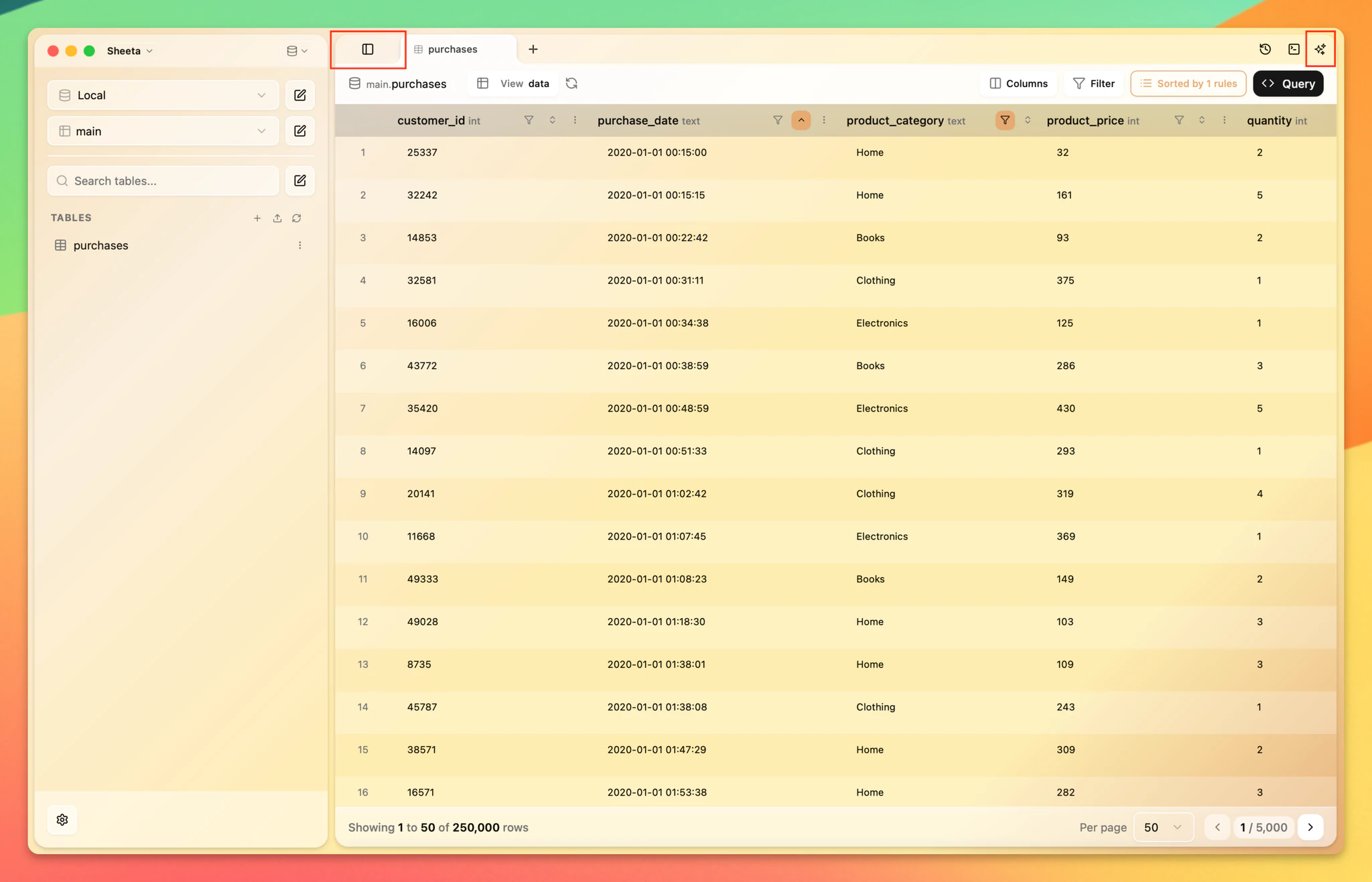
- Collapse the left sidebar (or press Cmd+B) for more space, then open the agent panel by clicking the icon at the top right (or press Cmd+I).
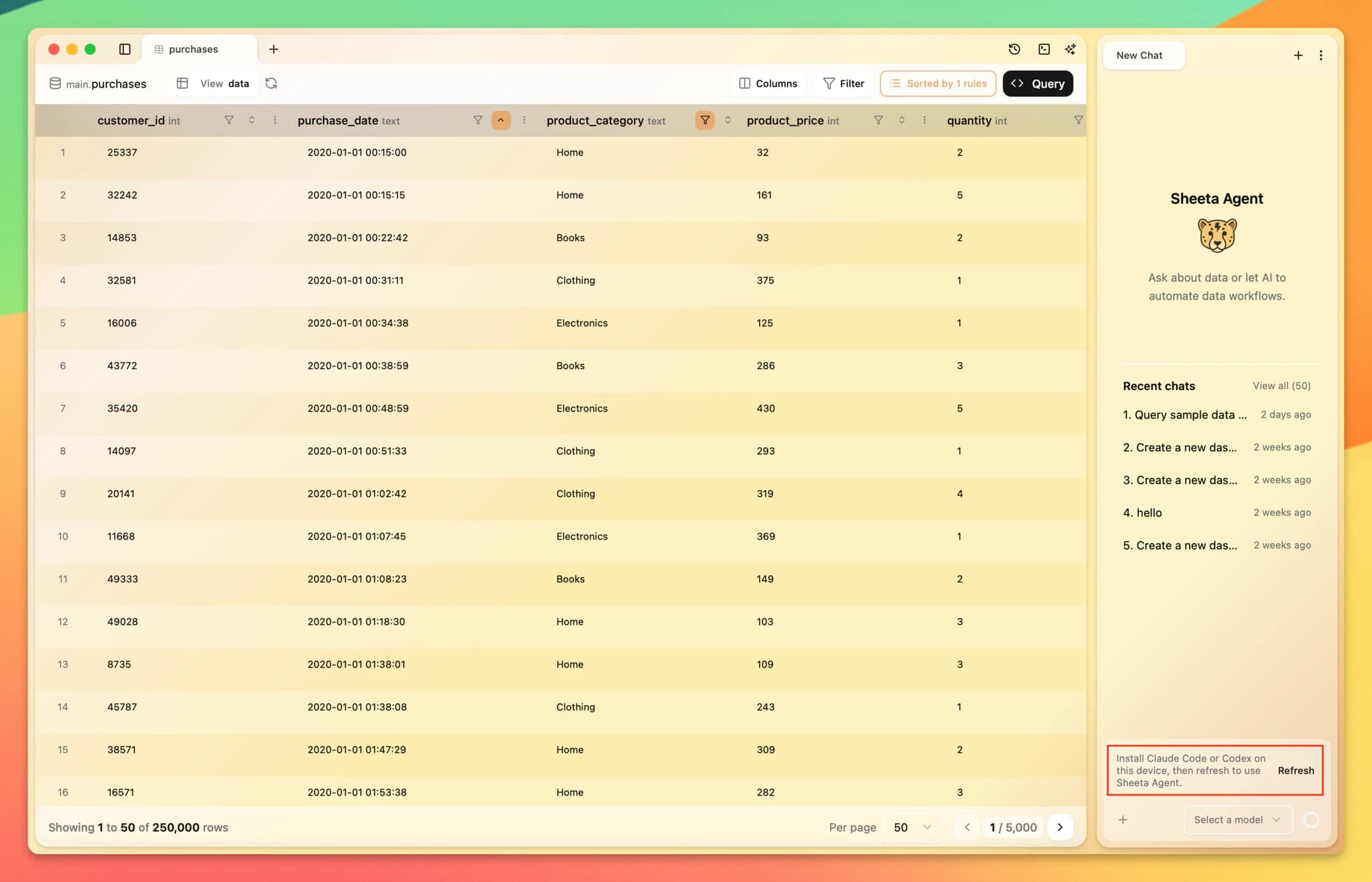
- The Sheeta Agent runs on top of a coding agent CLI. Install Claude Code or Codex (optional) on your device, then click Refresh.
- Once a CLI is detected, the agent panel is ready for you to chat.
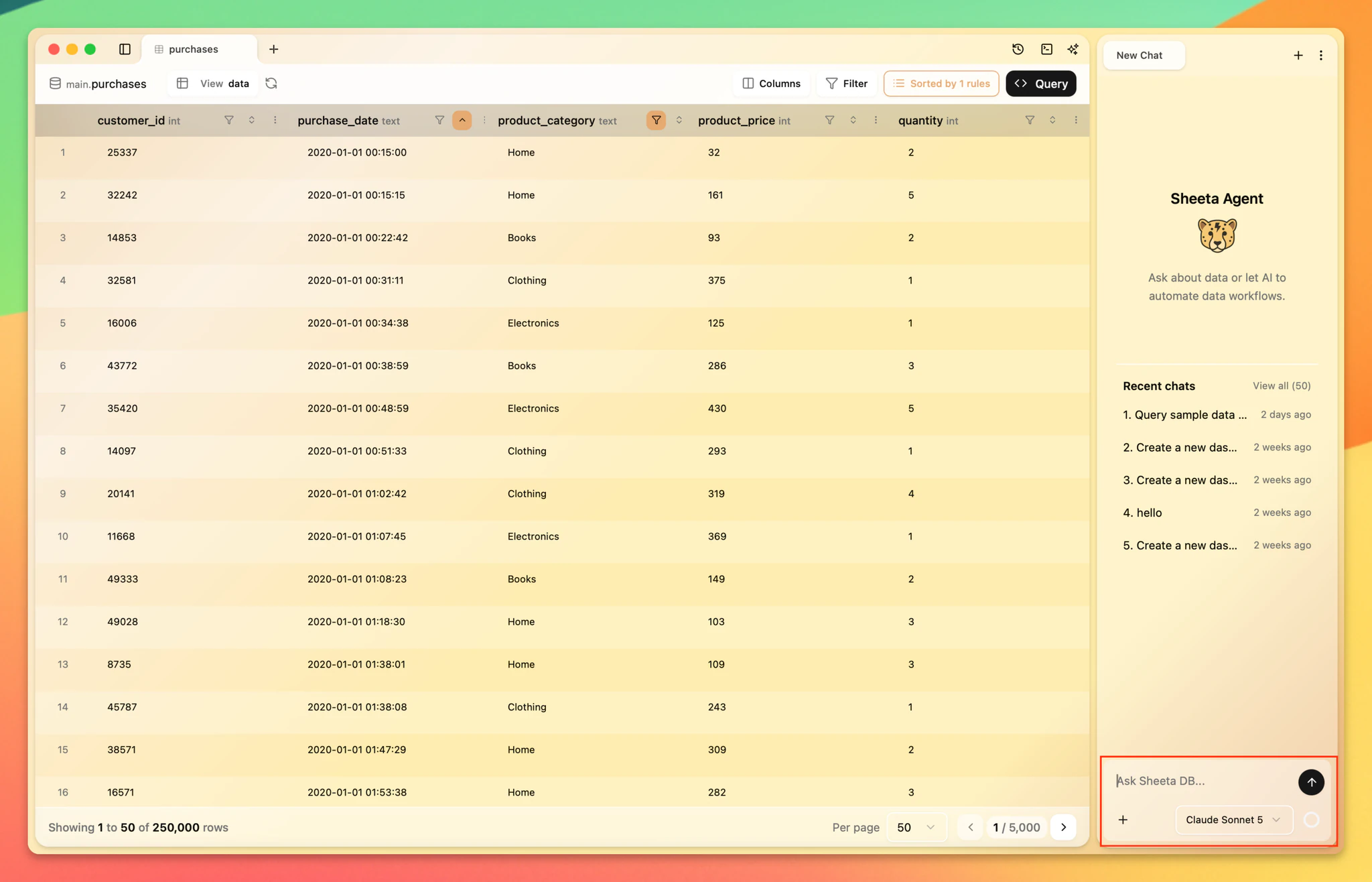
- Send this message:
What is the trend of monthly book product sales?The AI generates a query to analyze book sales trends and explains the result.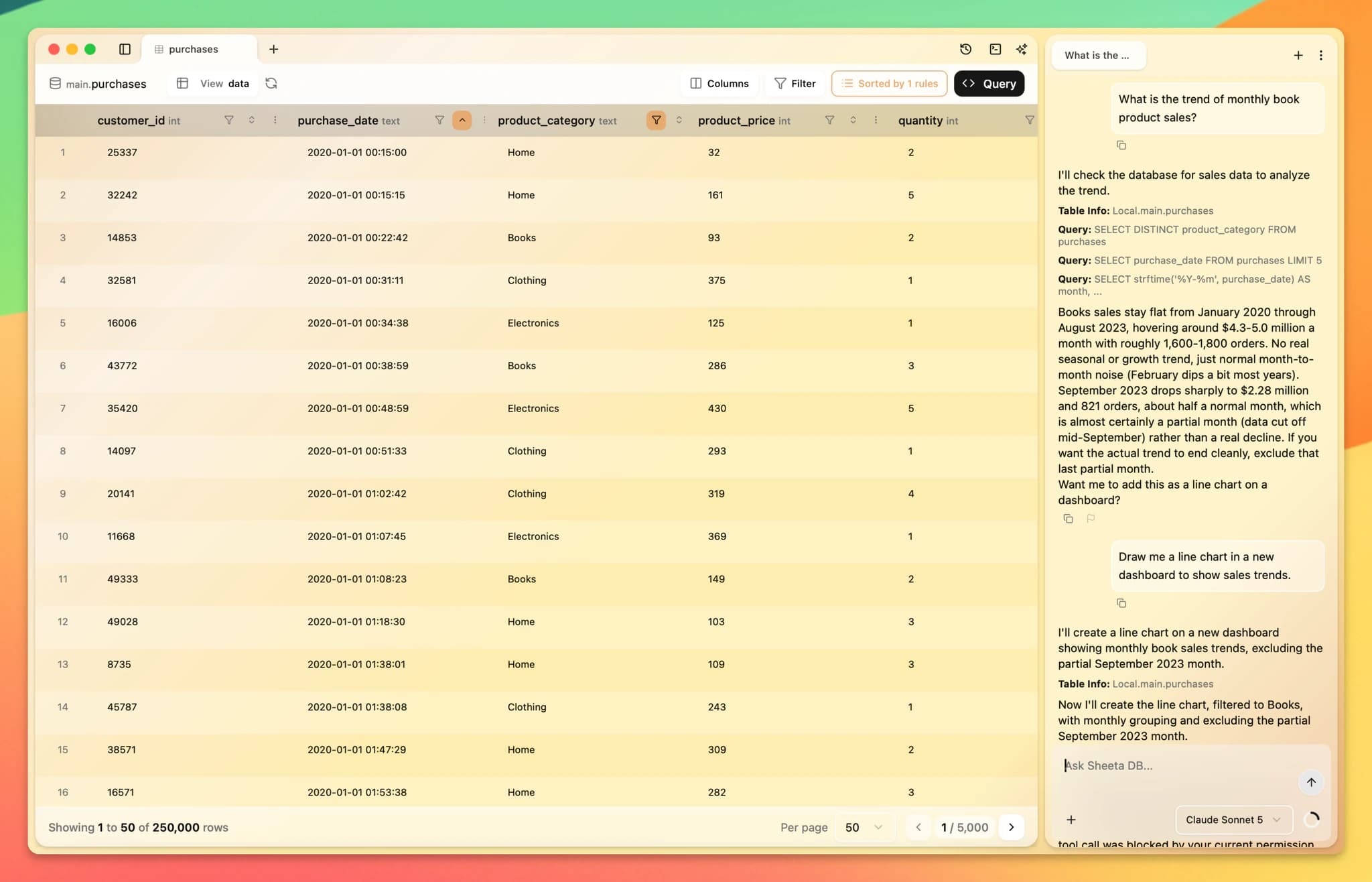
- Click the query in the AI response, then click Run to see the full result.
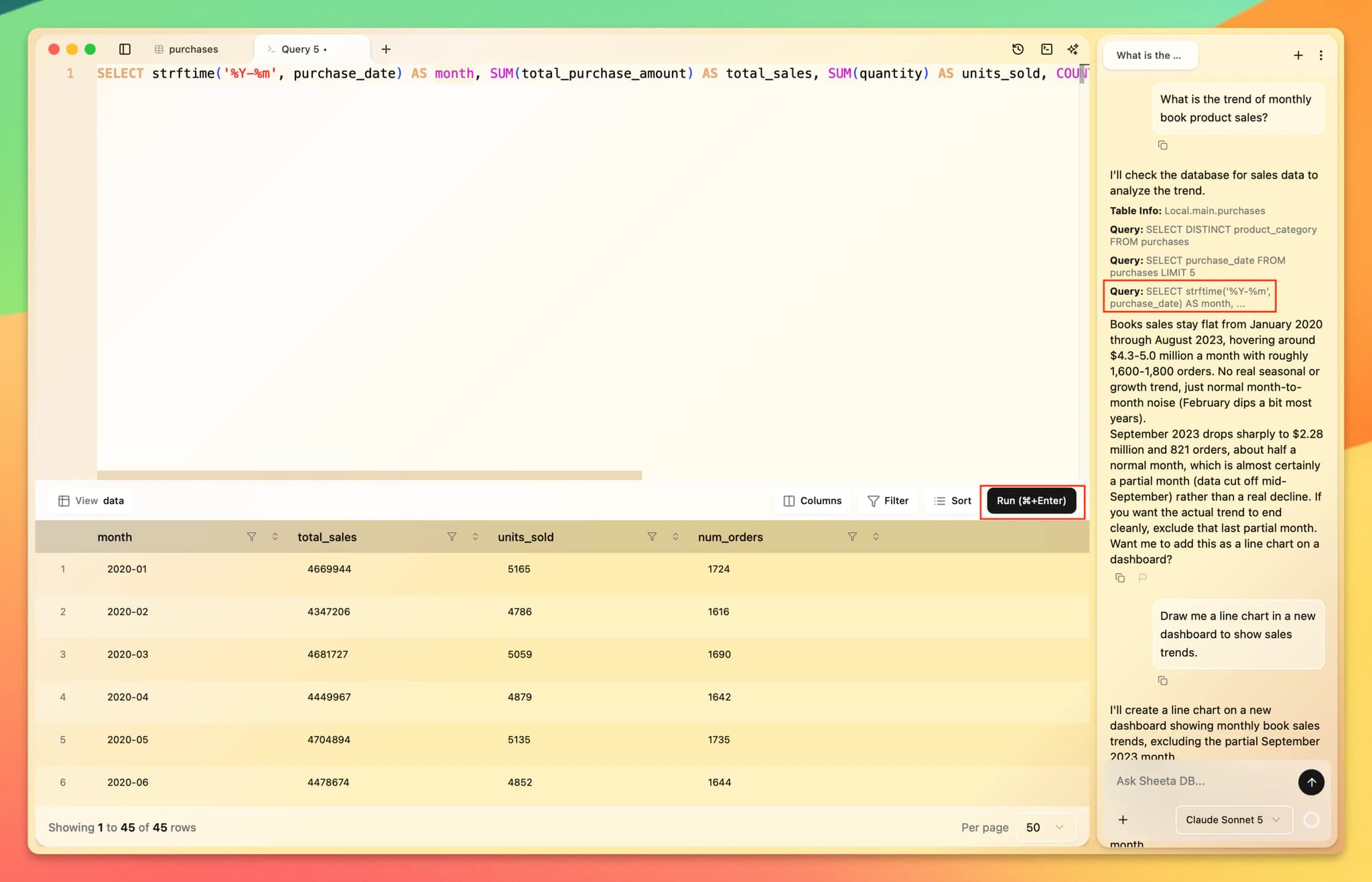
Note: AI query limits depend on your account tier. To increase your limit, upgrade to Plus or Pro.
Visualize with a Dashboard
Now let's turn this result into a chart on a dashboard.
- Send this message:
Draw me a line chart in a new dashboard to show sales trends. - Click the dashboard link in the AI response to open it.
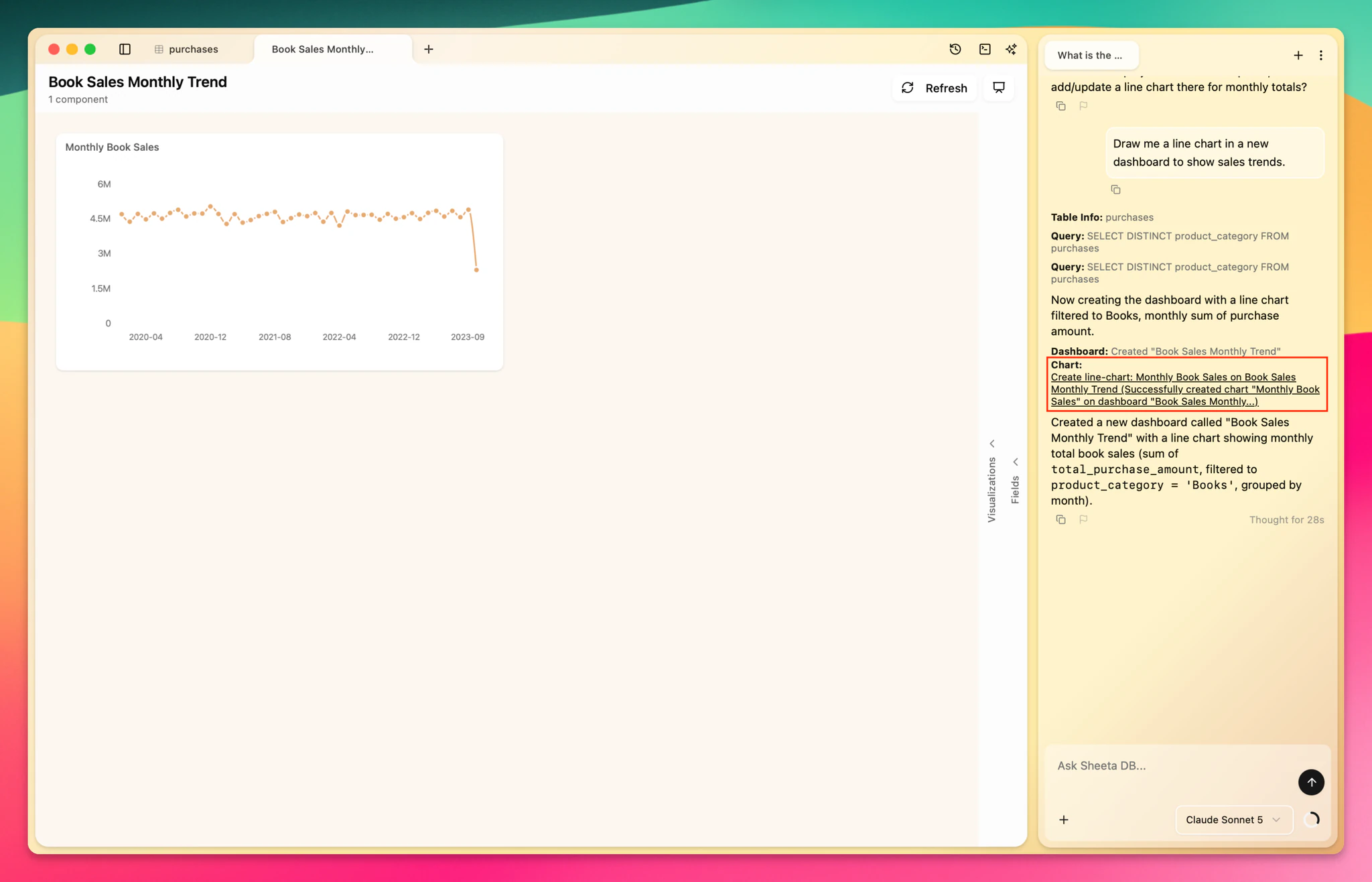
- View the dashboard with the line chart showing monthly book product sales trends.