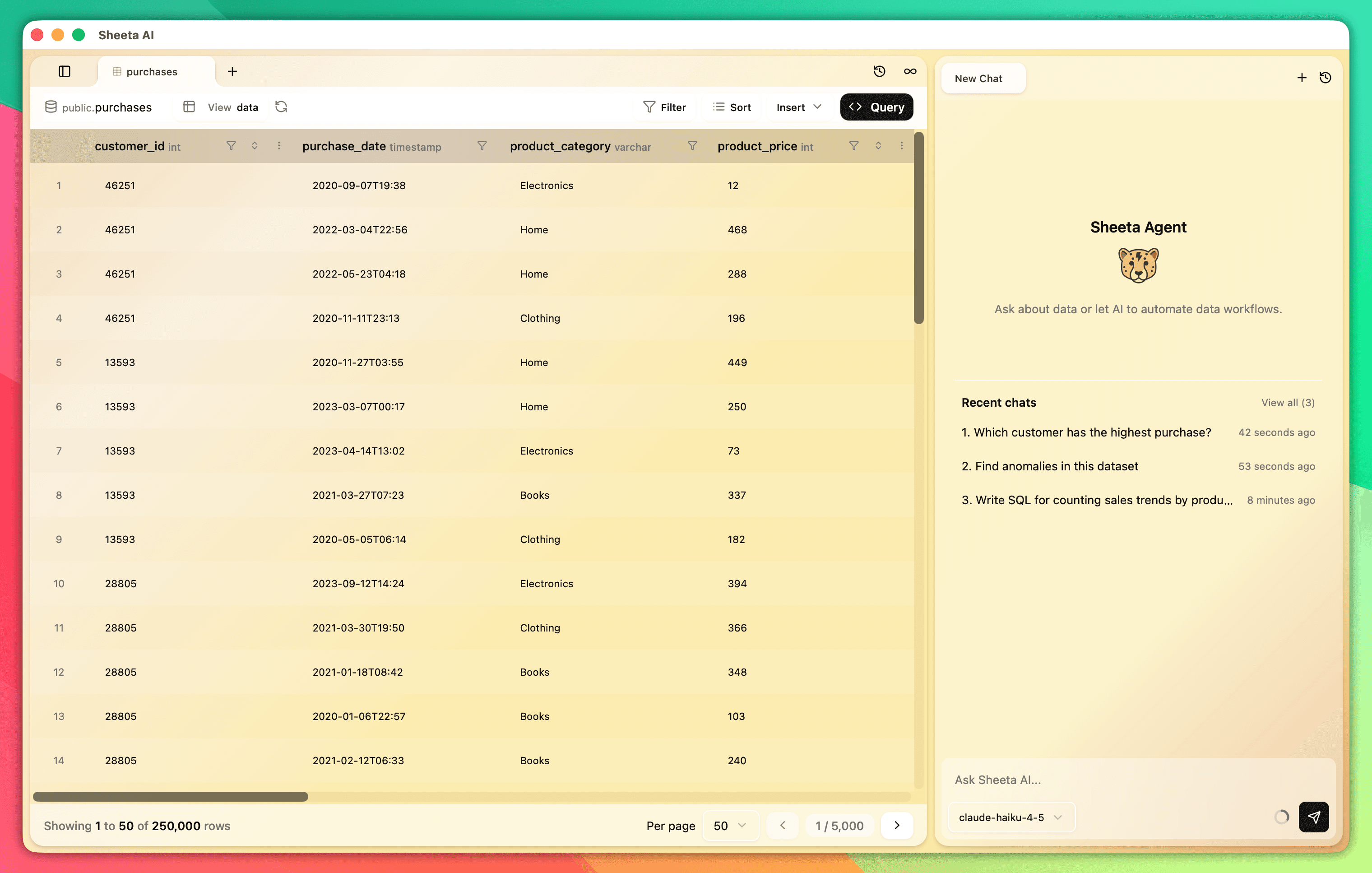
Key features
Project
A project is a folder that groups related database work together. Organizing your data work as a project increases productivity, streamlines team collaboration, and helps the AI agent understand your context with less manual effort.
What is a project?
A project includes:
- Database connections — Store connection configurations for multiple databases
- Files — Save and organize queries, CSV, JSON, data files, and notes. Files benefit both human collaborators and the AI agent. The AI references business requirements, terminology, example queries, and sample data to provide accurate responses with minimal manual context.
- Metadata — Column descriptions, table documentation, AI permissions, and custom instructions
- AI chat history — Conversation history is stored locally per project. You can refer back to previous chats when working with the AI.
Projects offer greater benefits when working with multiple database connections or larger-scale data work. They help teams communicate more effectively, and the AI agent gains valuable context without requiring repeated explanations.
Creating a project
To create a new project:
- Open the Sheeta AI app.
- Click Open folder or press Cmd+O.
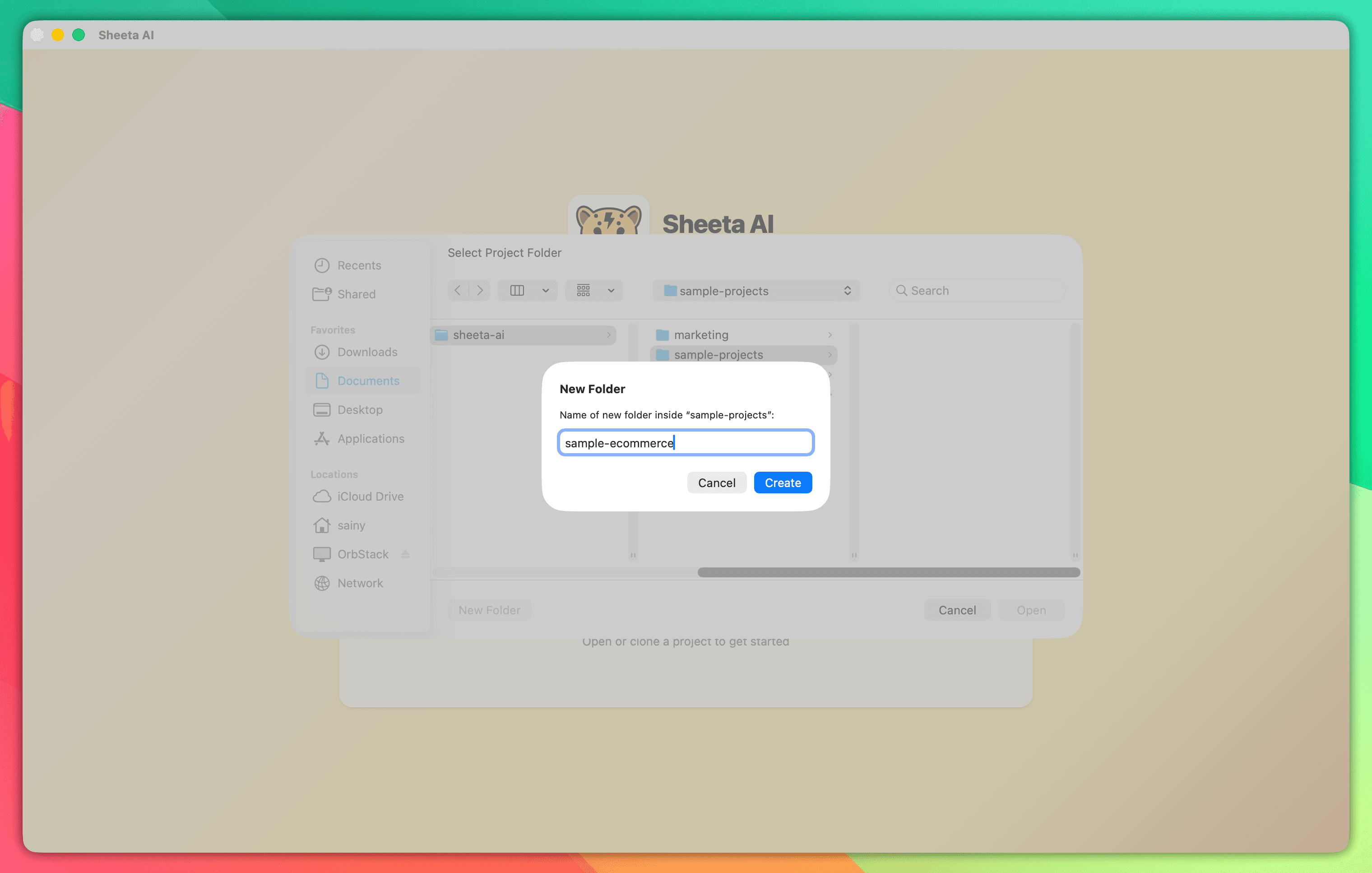
- In the file picker, create a new empty folder.
- Select the folder and click Open.
You start fresh in an empty folder. Add new connections or new files, and everything saves locally within the project.
Opening an existing project
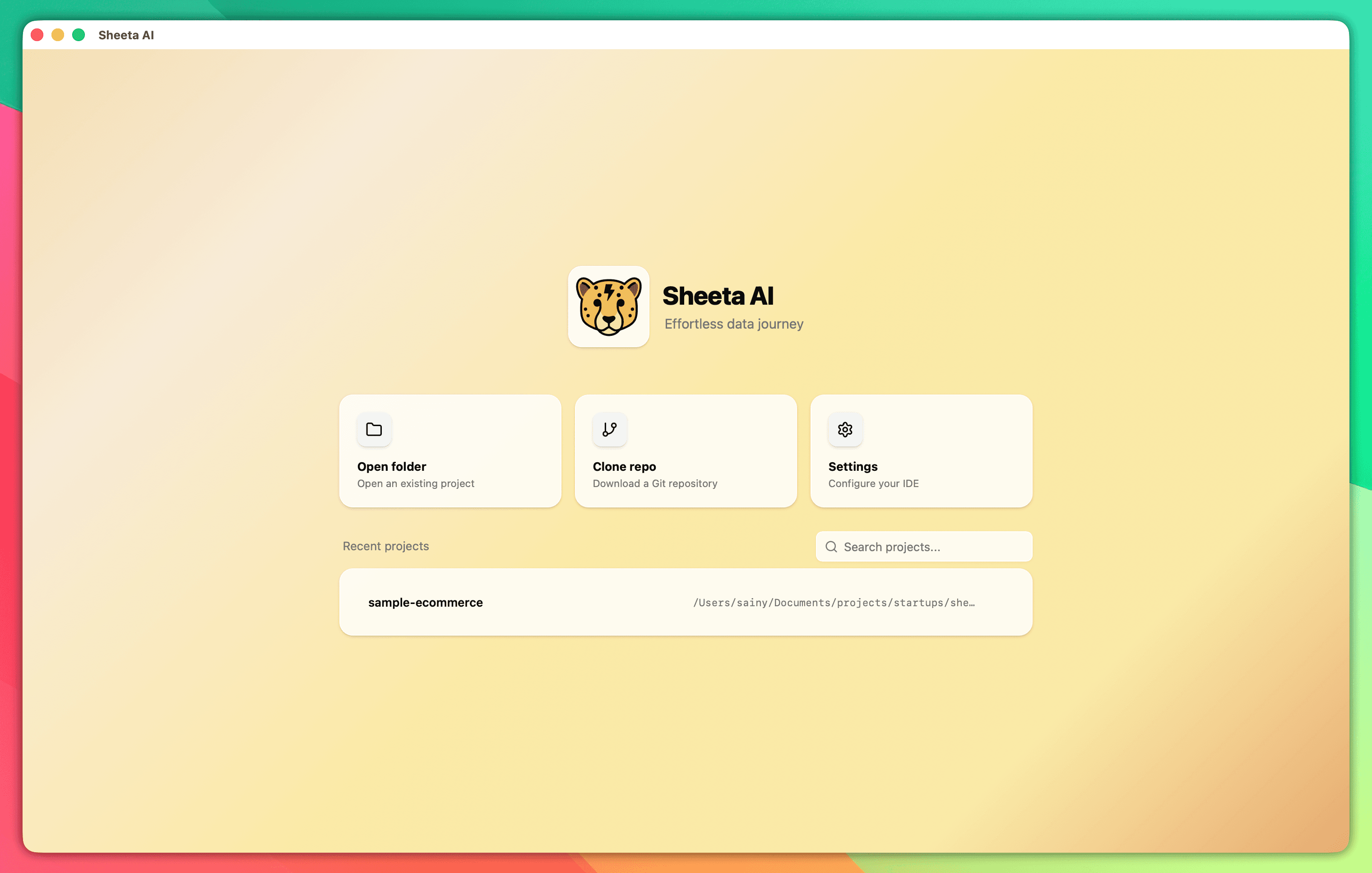
If you already have a project, open it using the same method as creating one—select an existing folder instead. Alternatively, click a recent project from the home screen for quick access. You continue working with all your existing connections and files.
Cloning a project using Git
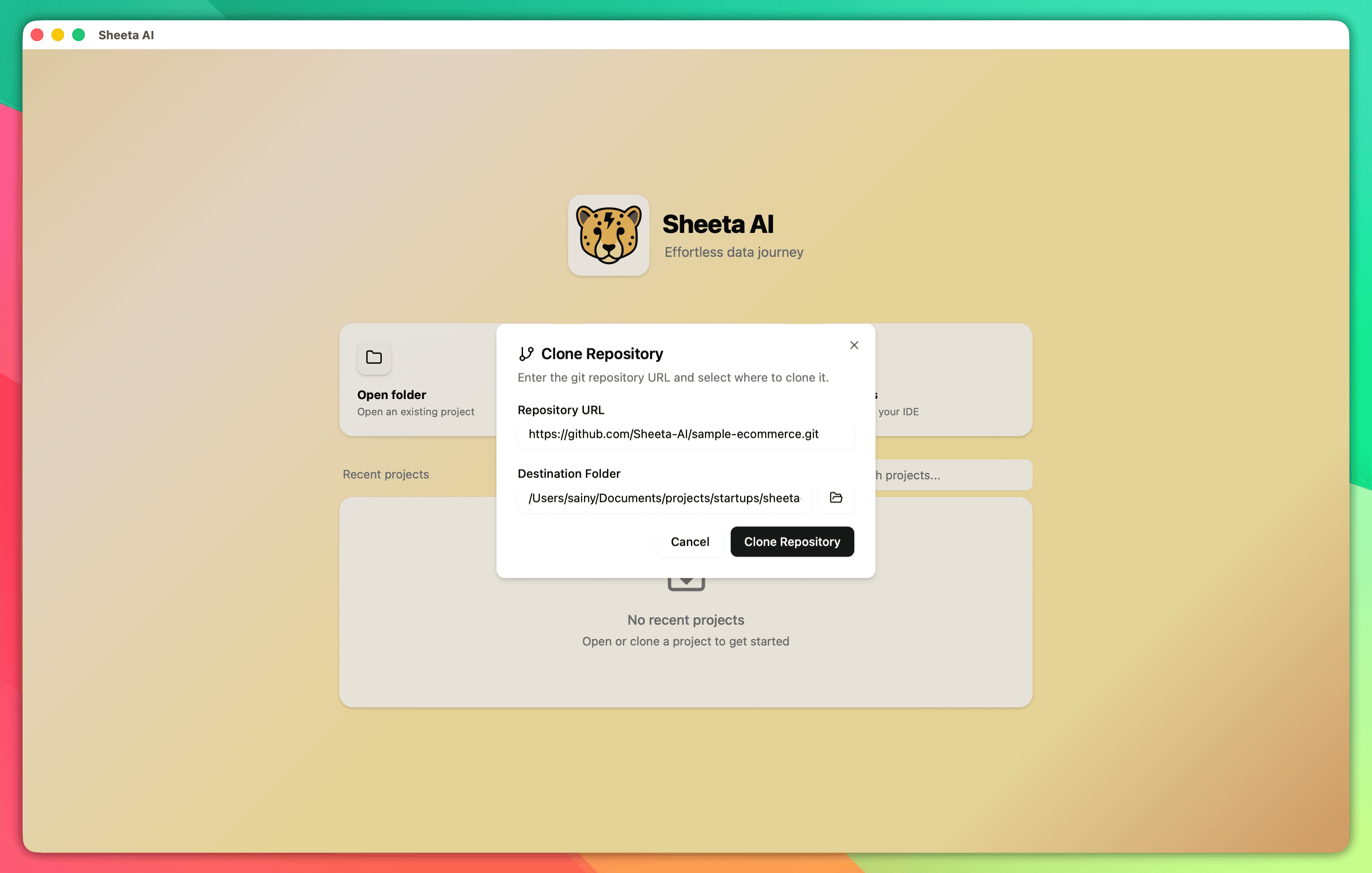
You and your team can store Sheeta AI projects remotely in a Git repository. To clone an existing project:
- Open the Sheeta AI app.
- Click Clone repo or press Cmd+G.
- Enter the Repository URL and select a Destination folder.
- Click Clone Repository.
You now have a project stored remotely in Git. This is useful for team collaboration—files and database connections are shared in the project. To keep credentials safe, usernames and passwords are not stored in Git history. You must fill in database credentials manually via the connection management menu (the first edit icon on the left panel).
Database connections
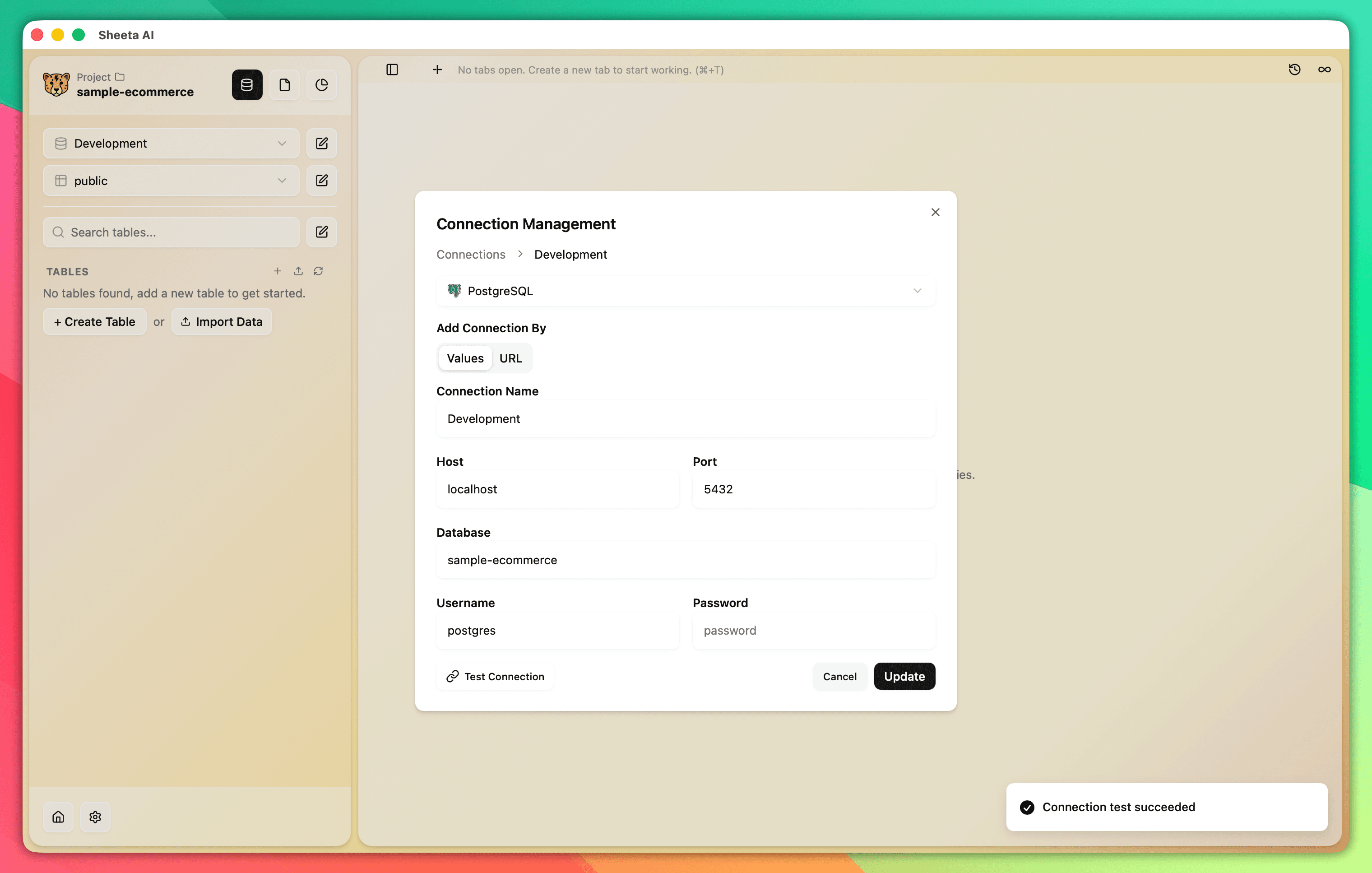
Click the edit icon next to the first dropdown on the left panel to open connection management. From there, you can add, remove, or update database connections for your project. Each connection lets you manage schemas/datasets and data tables.
Switch between connections using the first dropdown, select schemas/datasets with the second, and choose tables with the third. For more details, see the database connection guide.
File explorer
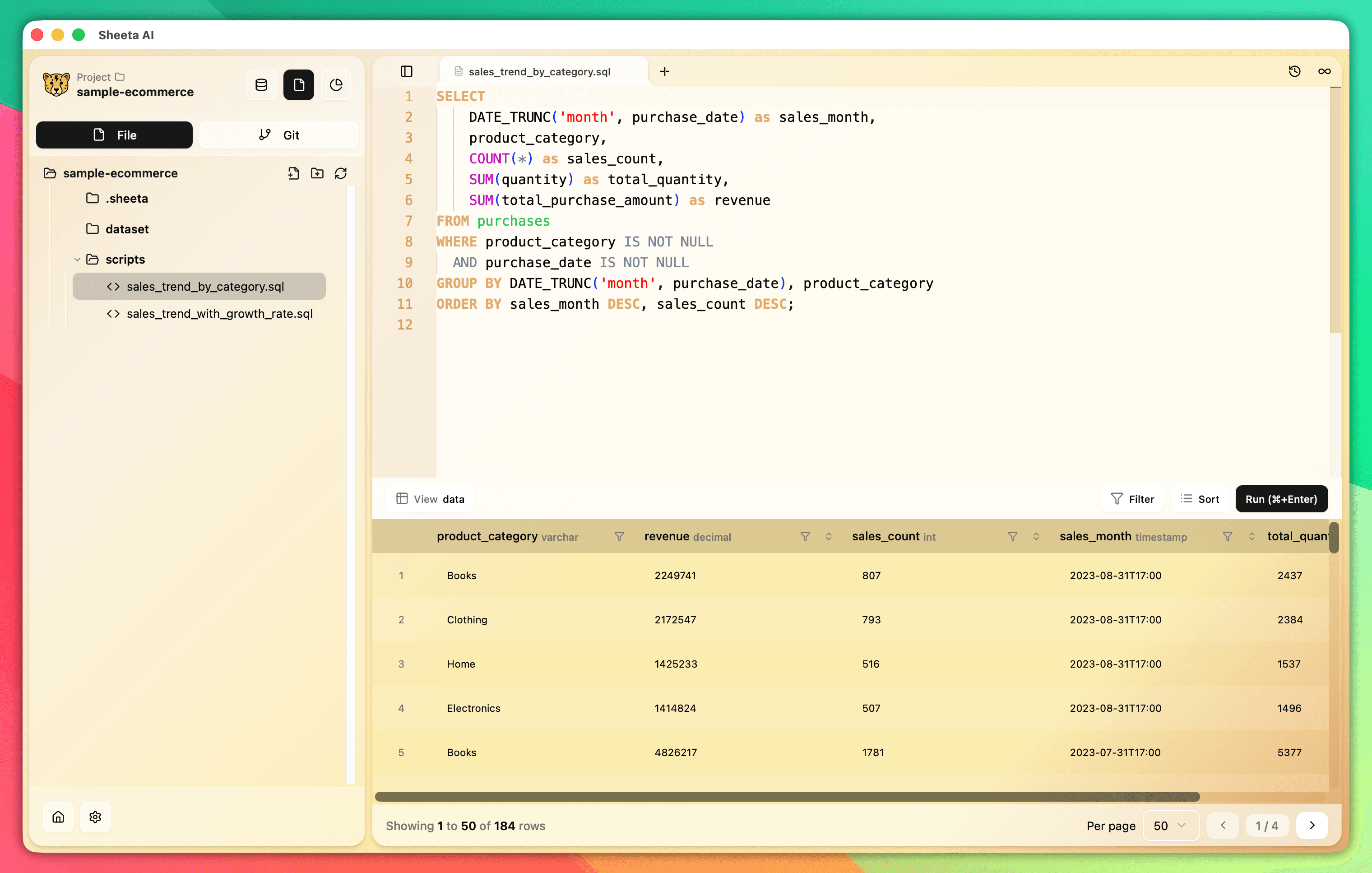
Click the file icon at the top of the left panel to open the file explorer. From there, create files and folders to organize your project.
Common use cases include:
- Query files (.sql) for reusable SQL scripts
- Sample data files (.csv, .json, .xlsx) for reference
- Notes (.txt) for project documentation
These files provide context for the AI agent, helping it deliver better results without requiring you to explain everything from scratch. Learn more in the file editor guide.
Version control
Sheeta AI aims to offer fully functional version control via Git. Users can track changes, commit, and pull or push to a remote repository—just like in VS Code.
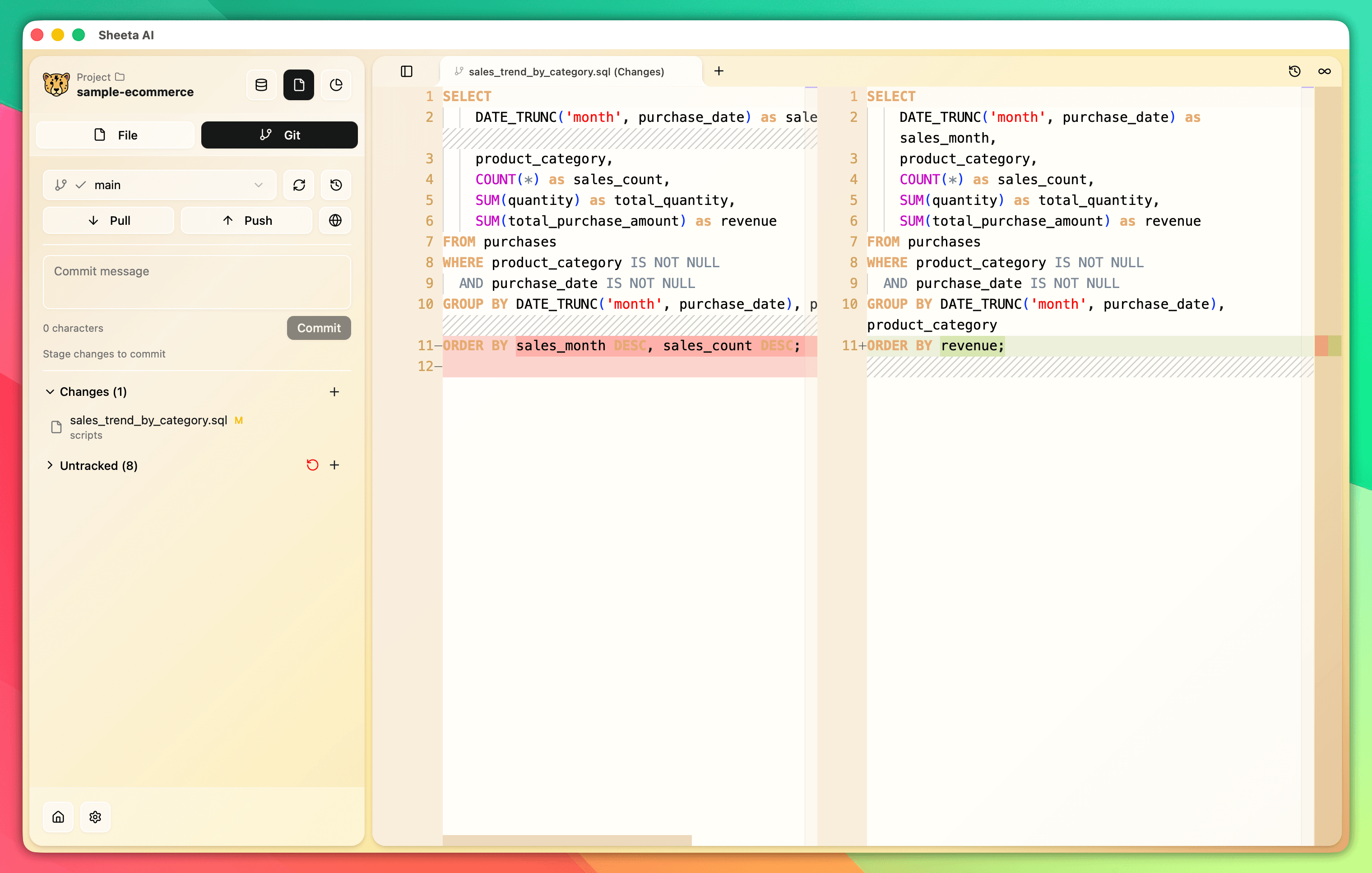
Table metadata
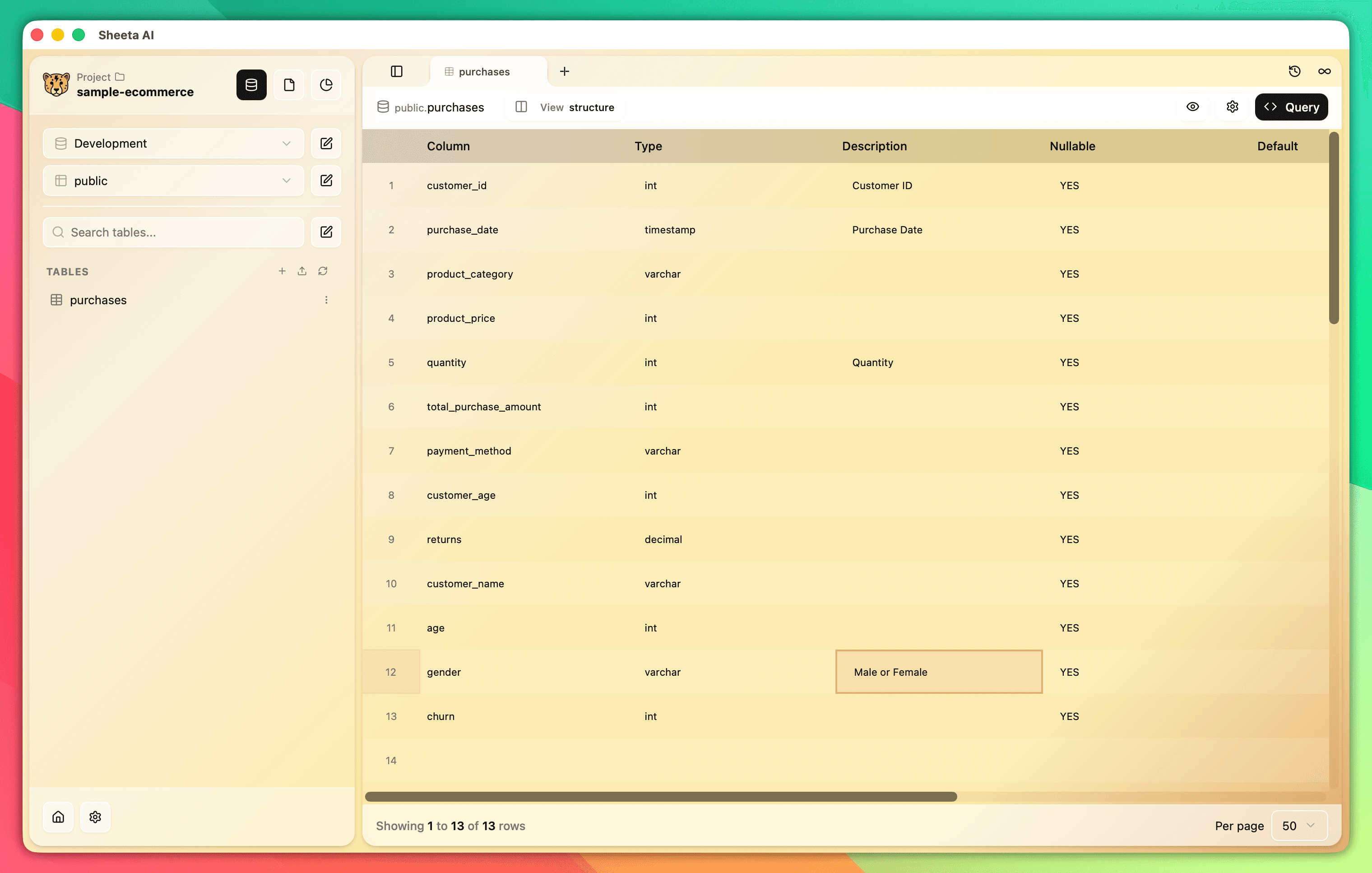
Table metadata (or data catalog) lets you add descriptions for tables and columns. These descriptions help teams, data users, and the AI deeply understand individual tables and fields, reducing communication gaps.
To add metadata:
- Click on a table.
- Switch to the Structure view.
- Type table and column descriptions, then save.
Learn more in the data exploration guide.
AI chat history
AI chat history is stored locally per project. Access previous conversations in the AI tab to review or continue where you left off. Learn more in the AI Agent guide.