Database guides
Google Cloud SQL
Sheeta AI has a CloudSQL connection type for Google Cloud SQL for PostgreSQL. You sign in with Google, pick the instance and database from lists, and Sheeta AI can add your IP address to the instance's authorized networks. MySQL and SQL Server instances on Cloud SQL are not listed.
Before you start
- A Cloud SQL for PostgreSQL instance with a public IP address.
- A Google account that can view the project and its Cloud SQL instances. To add your IP address from Sheeta AI, the account also needs permission to edit the instance.
- A database user and password on the instance.
Connect
- Click Manage database connections, then Add, and select CloudSQL.
- Enter a Connection Name.
- Under Google account, click Sign in with Google and finish signing in in your browser.
- Choose the Project, the Cloud SQL instance and the Database. Each list has a search box.
- Enter the PostgreSQL Username and Password.
- Open IP Whitelist to check your access (see below).
- Click Test Connection, then Save.
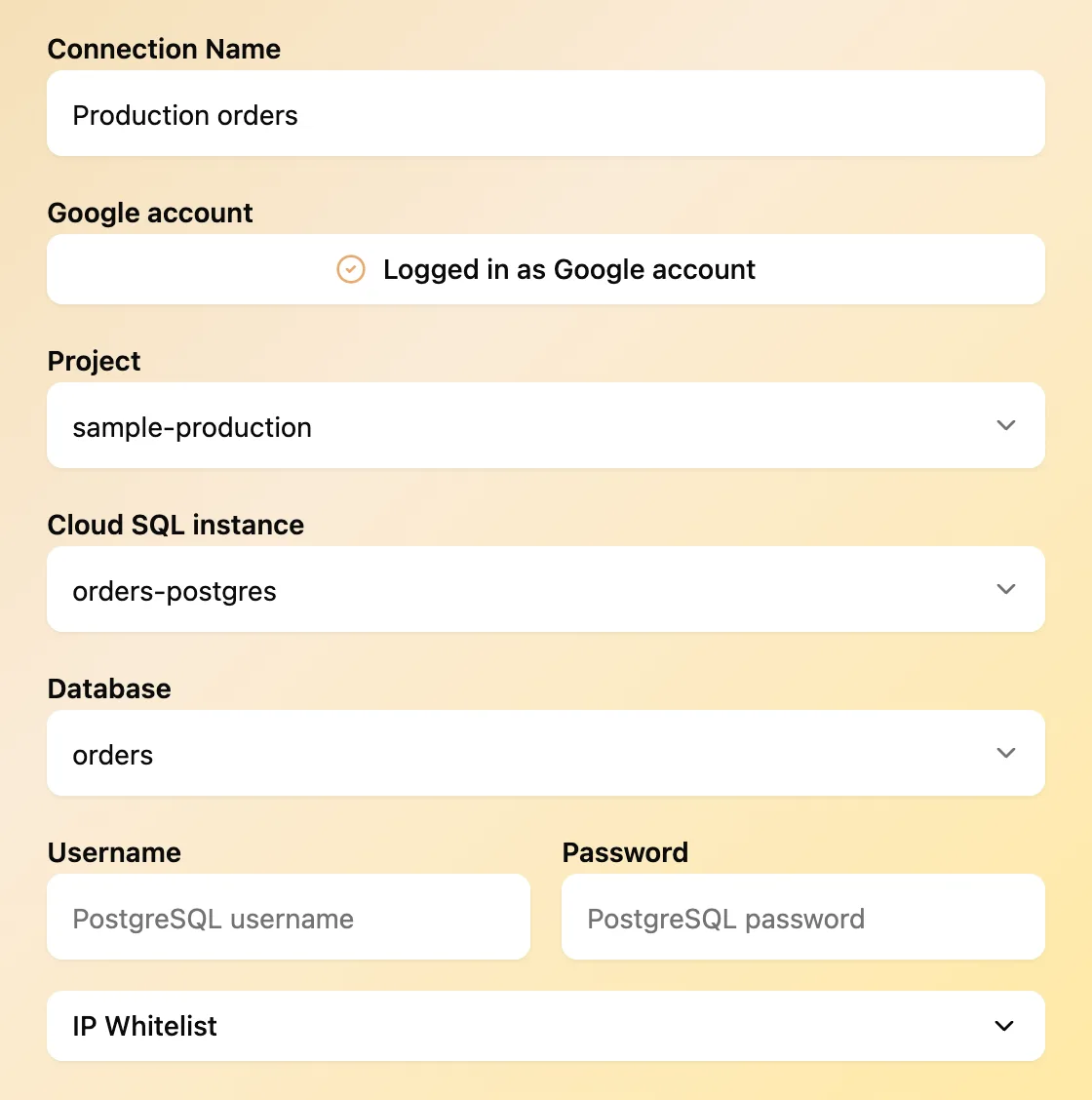
Sheeta AI connects to the instance's public IP address on port 5432.
Authorize your IP address
Cloud SQL only accepts connections from addresses in the instance's authorized networks. The IP Whitelist section shows your Current public IP.
- If it says This device is authorized., you can connect.
- Otherwise, enter a Whitelist name, click Add current IP to Authorized networks and confirm with Add IP. Sheeta AI adds your address as a
/32network on the instance.
The change can take a short time to apply in Cloud SQL. If the message says the update is still running, wait and test again.
Instances without a public IP
If the instance has no public IP, or requires the Cloud SQL connector, Sheeta AI cannot connect to it directly. You can run the Cloud SQL Auth Proxy on your computer and add a regular Postgres connection to it:
./cloud-sql-proxy --port 5432 your-project:us-central1:your-instanceThen connect to host localhost, port 5432 with your database name, username and password. See Postgres.
Google sign-in on your computer
Signing in with Google writes Application Default Credentials to ~/.config/gcloud/application_default_credentials.json. This replaces any credentials you created there with the gcloud tool. You do not need to install the Google Cloud SDK.
Troubleshooting
- Your current public IP is not in this instance's Authorized networks. Add it in the IP Whitelist section, then test again.
- This instance does not have public IP enabled. Enable a public IP on the instance, or use the Cloud SQL Auth Proxy.
- Your Google account is not authorized to make this request. Ask a project admin for access to Cloud SQL in that project.
- Sign in with Google again to continue. Your Google session expired; sign in again.