Using Sheeta AI
Version Control
Sheeta AI has a built-in Git panel, so you can share a project with your team without leaving the app. It uses the git command installed on your computer. Install Git first if you do not have it.
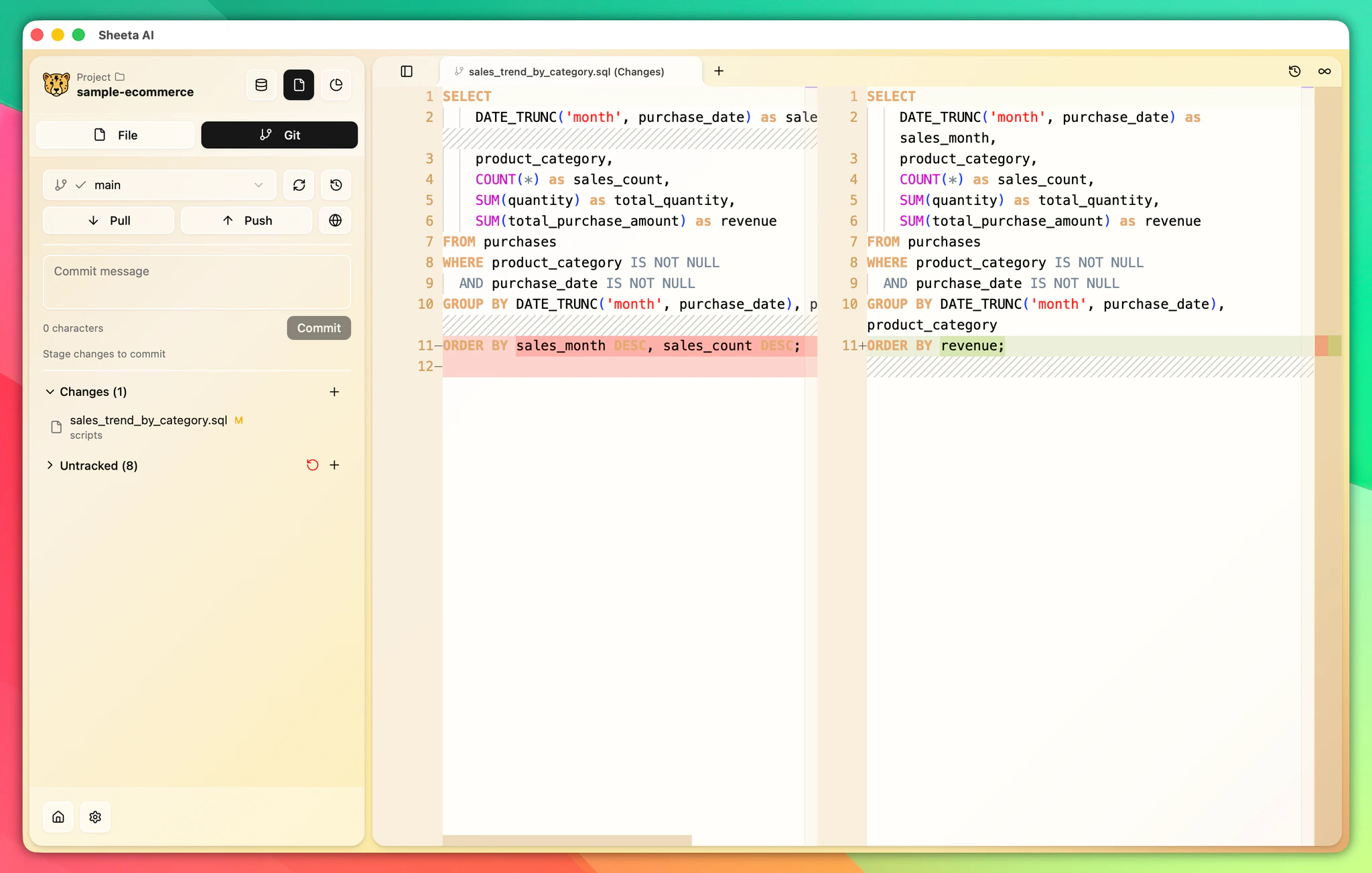
Open the panel
Switch the sidebar to File mode with Cmd+Opt+2 / Ctrl+Alt+2 and select the Version Control tab. If the project is not a Git repository yet, click Initialize Repository.
What is shared
Connections, dashboards, table descriptions, AI permission rules, chat history and your files are all stored in the project folder, so Git tracks them. Database usernames and passwords are kept in .sheeta/.env, which Sheeta AI adds to .sheeta/.gitignore. Each teammate enters their own credentials after cloning.
Review and commit changes
- Changed files appear under Changes, and new files under Untracked. Click a file to see a side-by-side diff.
- Click Stage on a file, or Stage All, to move it to Staged Changes. Use Unstage or Unstage All to undo.
- Enter a commit message and click Commit, or press Cmd+Enter / Ctrl+Enter.
Discard Changes and Discard All throw away local edits right away, without a confirmation.
Branches
Use the branch selector at the top of the panel to switch between local and remote branches. Choose Create new branch to start a new one. Deleting branches is not available in the app; use the terminal for that.
Pull, push and remotes
- Pull and Push show how many commits are waiting in each direction.
- Open Git Remote Settings to set the Origin Remote URL, test it and save it.
- Click Show History to list recent commits, and click a commit to see the files it changed.
Clone a project
To start from an existing repository, use Clone repo on the start screen or Clone from Git in the project menu. See Projects.