Using Sheeta AI
SQL Editor
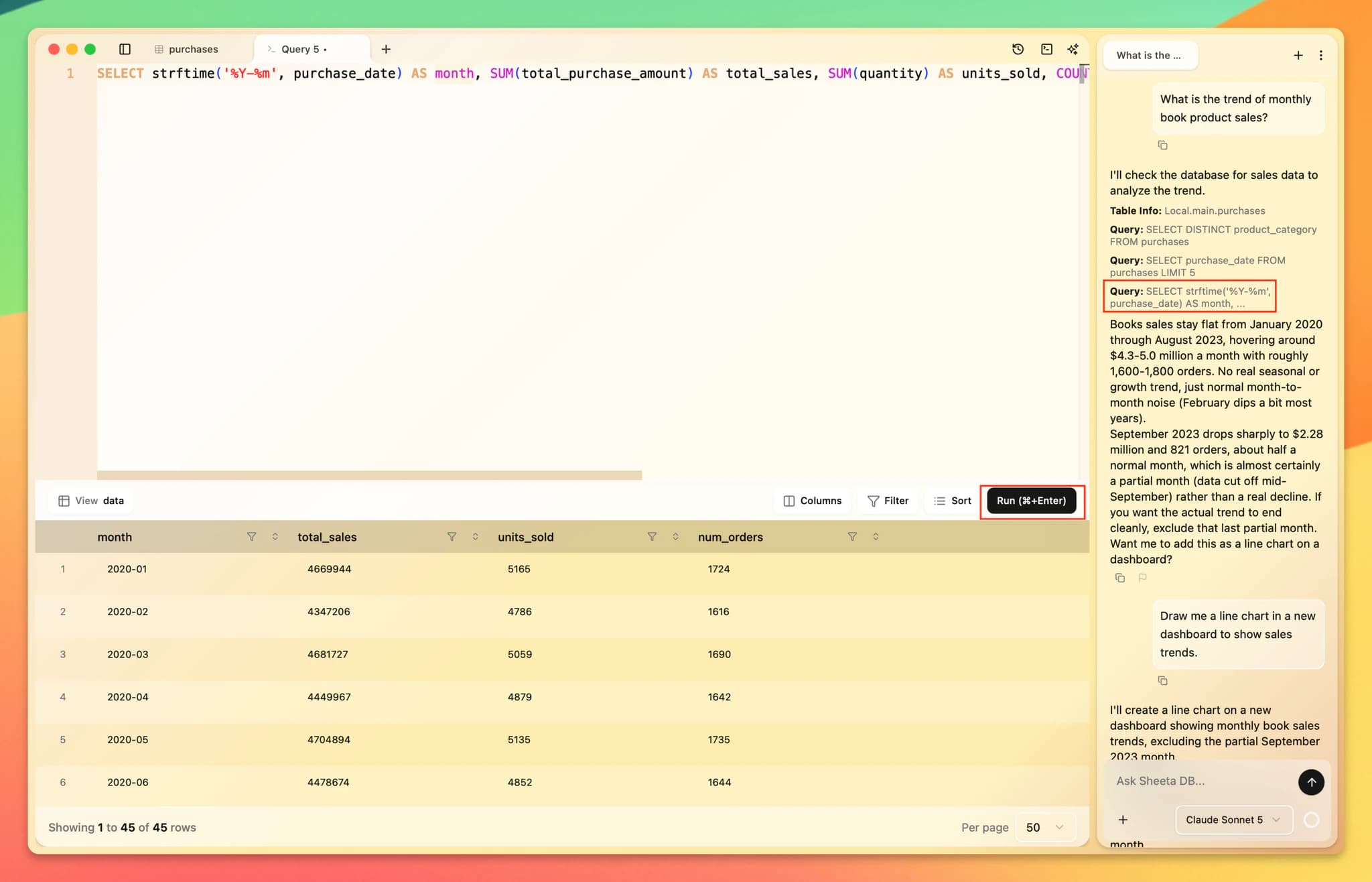
Query tabs and .sql files open in the SQL editor. The editor is based on Monaco, the editor used in VS Code. Results appear in a panel below the editor.
Open the editor
- Press Cmd+T / Ctrl+T to open a new query tab.
- In a table tab, click Query or press Cmd+Enter / Ctrl+Enter to open a SQL tab for that table.
- Open a
.sqlfile from the file explorer. Changes are saved to the file with Cmd+S / Ctrl+S.
Run a query
Click Run or press Cmd+Enter / Ctrl+Enter. The query runs on the active connection, which you choose in the Database sidebar.
- The whole content of the tab runs, not just the selection.
- If the tab has several statements, they run in order and the result of the last one is shown.
- Queries that change the schema, such as
CREATE TABLE, refresh the table list.
For BigQuery, Sheeta AI estimates the cost first. If the estimate is above your threshold, a Query cost check dialog asks you to confirm. Select Do not ask again this session to skip it until you restart the app. The threshold is set in Settings.
Writing SQL
- Autocomplete suggests keywords for the connection's dialect, schemas, tables and columns. Column suggestions follow table aliases in your query.
- Syntax checks underline errors as you type for PostgreSQL, MySQL and BigQuery.
- Format SQL with Cmd+Shift+F / Ctrl+Shift+F. Keywords become upper case and the query is indented for the active connection's dialect.
- Hover a table name to see its schema and type.Cmd+click (or Ctrl+click) a table name to open the table in a new tab.
Results
Results show 50 rows per page. Use Columns, Filter and Sort in the results toolbar to narrow them down, and Refresh data to run the query again. Result rows are read-only. To edit data, open the table itself (see Data Manipulation).
Switch the results View from Data to Graph to see a lineage diagram of the tables the query reads from.
Query history
Press Cmd+Y / Ctrl+Y, or click the history button in the tab bar, to open Query History. It lists the queries you ran in the current project, grouped by date, with the connection, run time and row count.
- Click a query to add it to the current SQL tab.
- Use Copy Query or Remove on a single entry, or Clear All.
History is stored by the app on your computer, outside the project folder, and keeps the last 1,000 queries.